

Runway currently supports connecting to only one HRIS account at a time. For multi-entity setup across systems, see Multi-entity integrations.
Connecting to Gusto
Follow these steps to connect Gusto to Runway and automatically sync your employee data: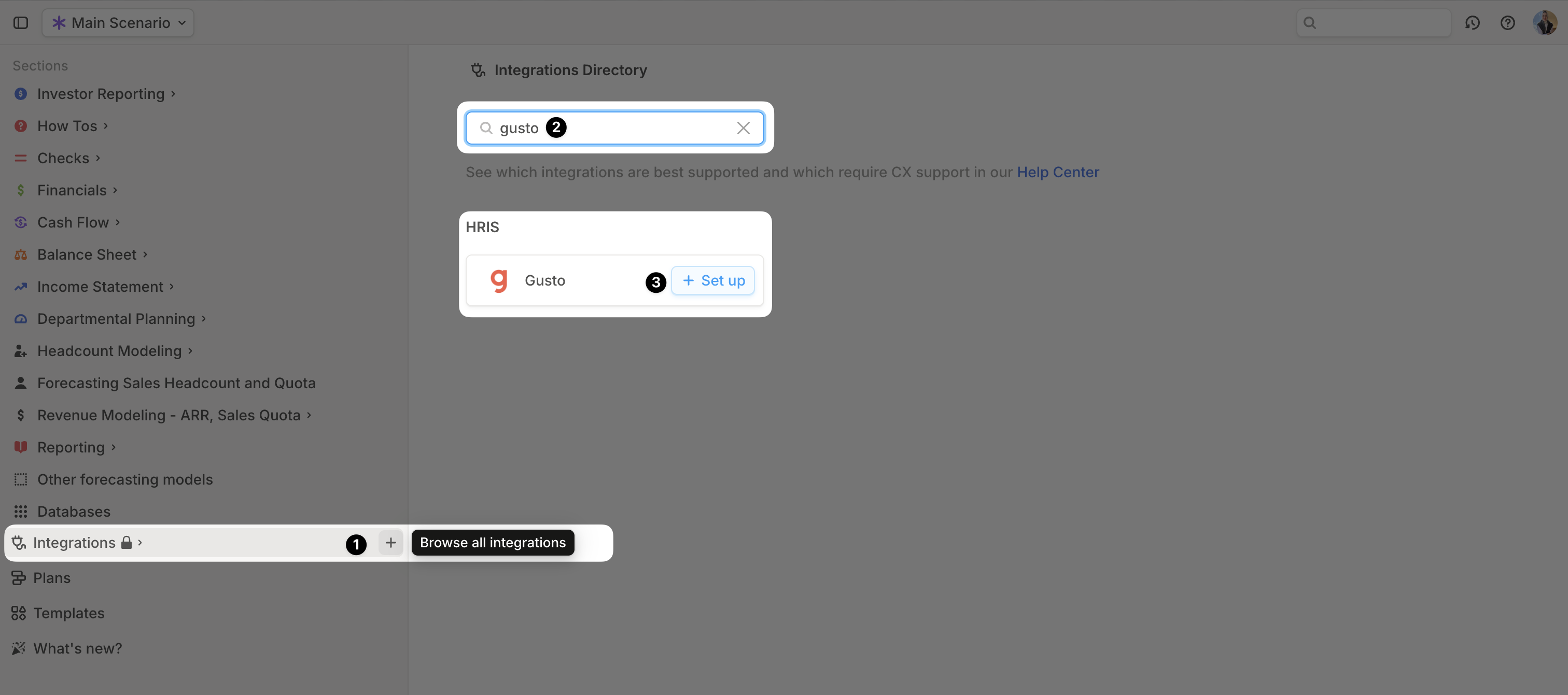
- Open your Runway instance.
- In the left sidebar, hover over Integrations and click the + button to open the Integrations Directory.
- Search for Gusto and click + Set up under the HRIS option.
- Follow the onscreen prompts to sign into Gusto and authorize the connection.
- Once authentication is complete, a confirmation message will appear, and the initial sync will begin automatically.
- When the sync is finished, a new Employee database will appear in your Runway sidebar, containing the imported data.
Gusto supported data
Runway automatically imports the following data from Gusto.Gusto FAQs
Does Runway write data back to Gusto?
Does Runway write data back to Gusto?
No, Runway supports read-only integrations. No data is written back to Gusto.
Does the Gusto integration send only base salary values or fully-loaded employee costs?
Does the Gusto integration send only base salary values or fully-loaded employee costs?
Runway currently only syncs base salary values for each employee.
Can I connect additional HRIS sources?
Can I connect additional HRIS sources?
Runway supports only one active HRIS connection at a time. For the current multi-entity limitation, see Multi-entity integrations.