

Invite people from the Share sheet
1
Open the Share sheet
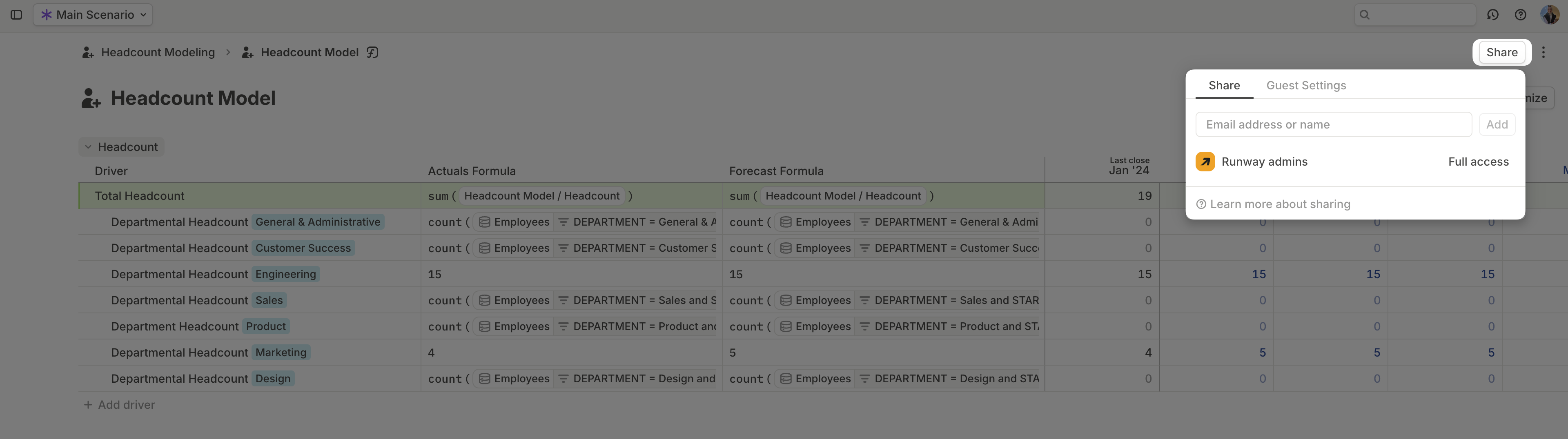
Open the resource you want to share, then click Share.
2
Open People
Select the People tab.
3
Enter people or groups
Use the field labeled Email, name or group, separated by commas. You can enter one person, multiple people, or an existing group.
4
Choose access
Pick the access level for each invitee, then click Add.
5
Choose whether to notify them
Leave Notify via email on to send an invitation. Add an Optional message when the invite needs context.
Pending invites
People who have been invited but have not joined yet show a Pending badge. After they join, they appear as workspace users and can be managed through sharing settings.Org-wide access
The Everyone at {org} row controls default access for everyone in your workspace. Use it when a resource should be broadly visible or editable inside your org, and use individual rows or groups for narrower exceptions.When to use links or groups instead
Use share links when you want a page-level link for people outside your org. Use groups when the same set of people should receive access to multiple resources.FAQ
What role do invited users get?
What role do invited users get?
Invited users default to the Member role. See Roles and access for what that role means.
Can I invite several people at once?
Can I invite several people at once?
Yes. Enter multiple emails, names, or groups in Email, name or group, separated by commas.