

Main vs. draft scenarios
Your Main scenario is your live, official model. To protect it from accidental changes, Runway automatically creates a draft scenario when you make data edits in Main. Once in draft, edits remain local. They do not affect Main or another scenario unless they are merged.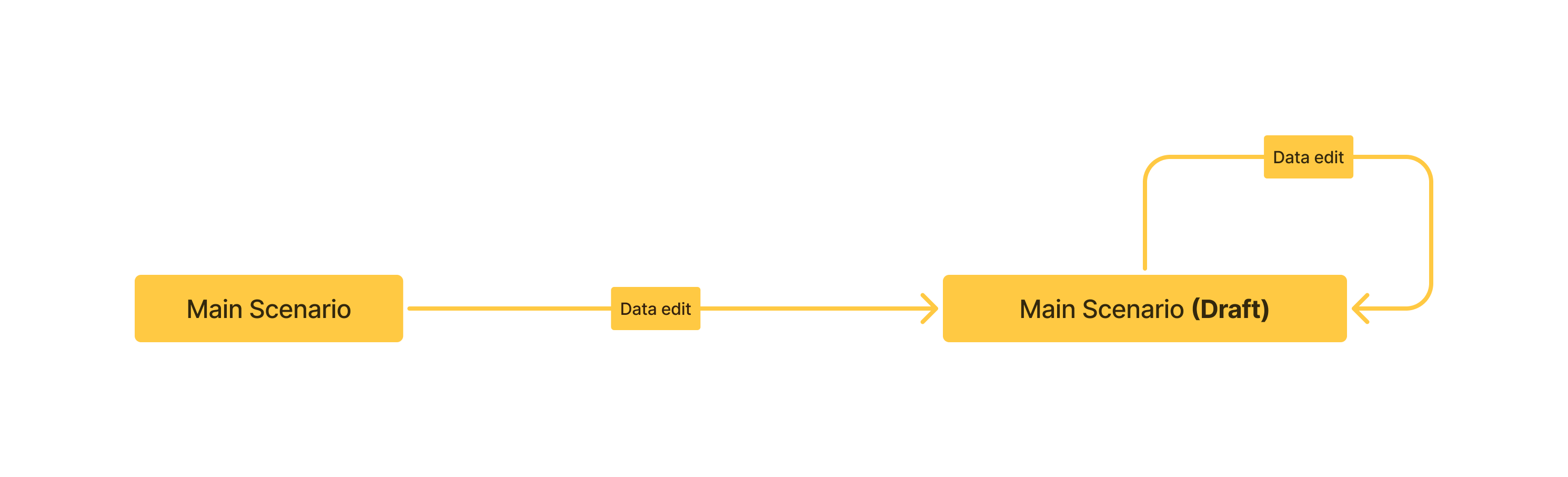
What counts as a data edit?
These actions create a draft when performed in Main. In a non-Main scenario, the impact stays scoped to that scenario until a user with merge access merges it into Main.- Drivers: Creating, renaming, deleting, editing formulas, modifying values, moving drivers, adding or removing drivers from blocks, marking KPIs, and changing formatting.
- Models or databases: Creating or deleting models or databases, adding or removing database rows, editing formulas, modifying cells, or changing database schema.
- Pages: Creating, renaming, deleting, reordering pages, creating or deleting blocks, editing blocks, or creating and updating sidebar sections.
What does not count?
The following changes apply directly to Main and to scenarios with automatic updates enabled:- Table view changes such as filters, sorts, groups, visible columns, and column width.
- Adding, editing, or removing integration credentials.
- Adding, editing, or removing integration queries and configuration.
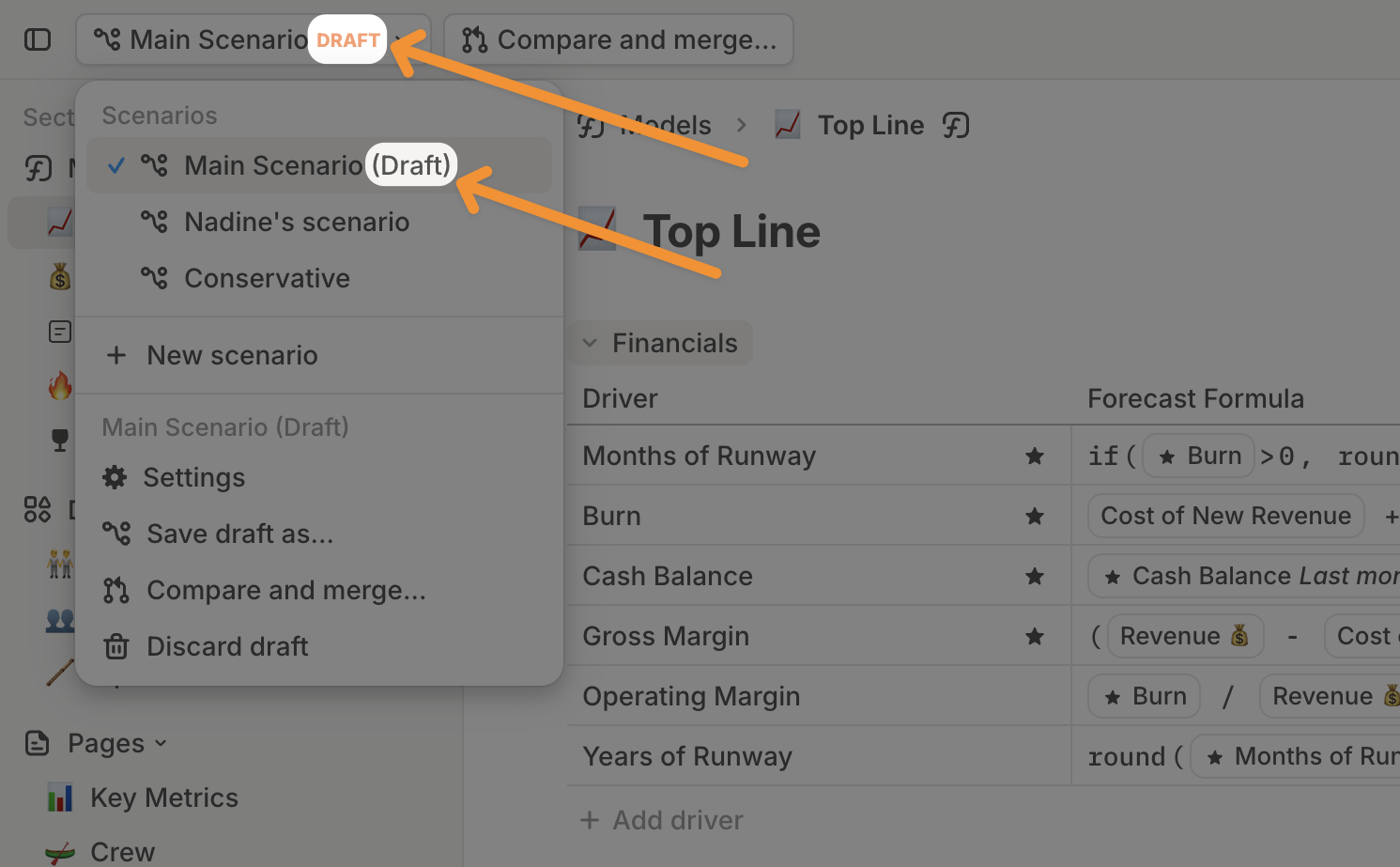
How to tell you’re in a draft scenario
Look for theDRAFT label in the scenario name.
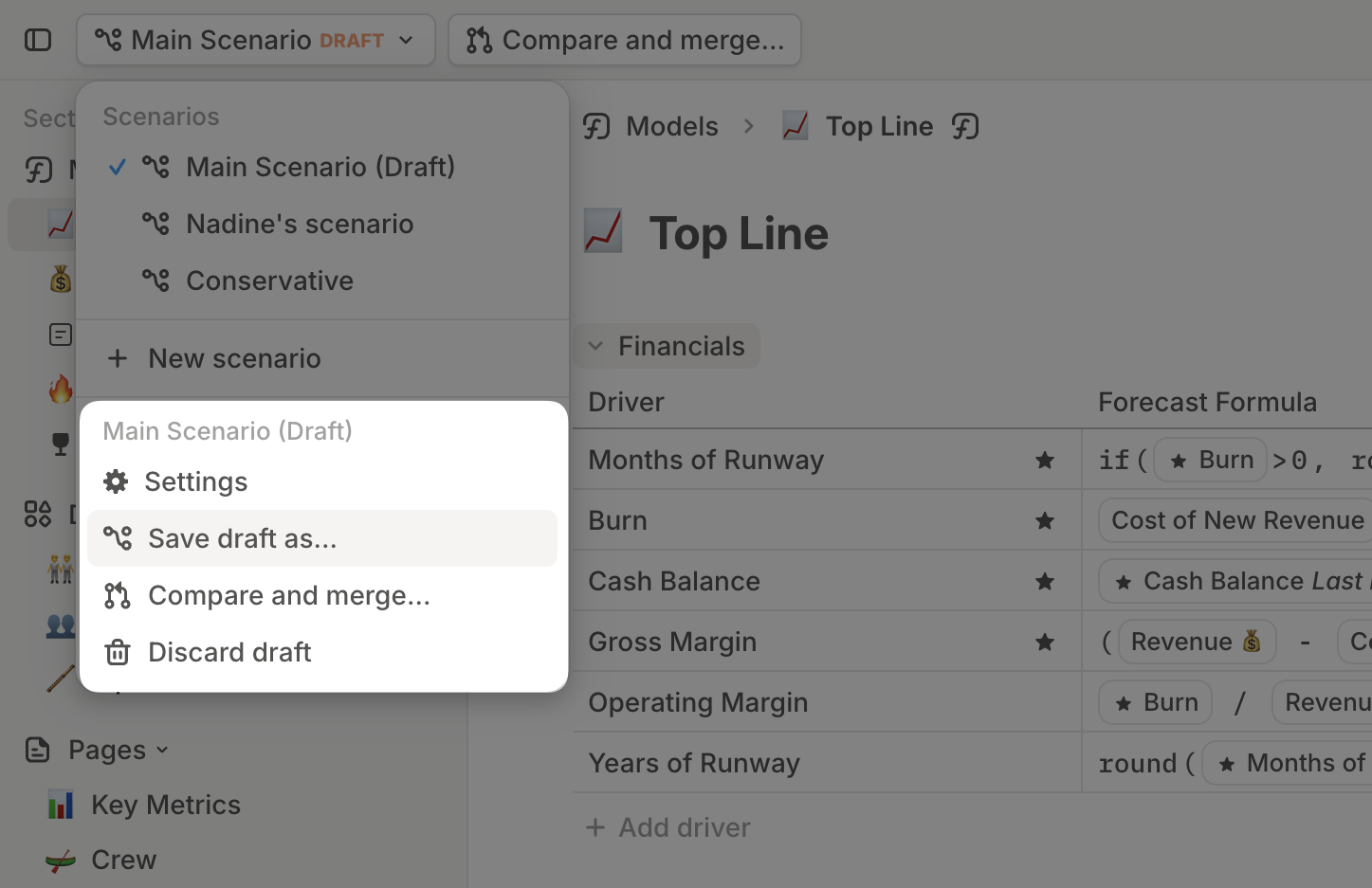
Managing a draft scenario
When working in a draft scenario, available actions depend on your permissions:- Save draft as scenario… creates a standalone scenario for your edits.
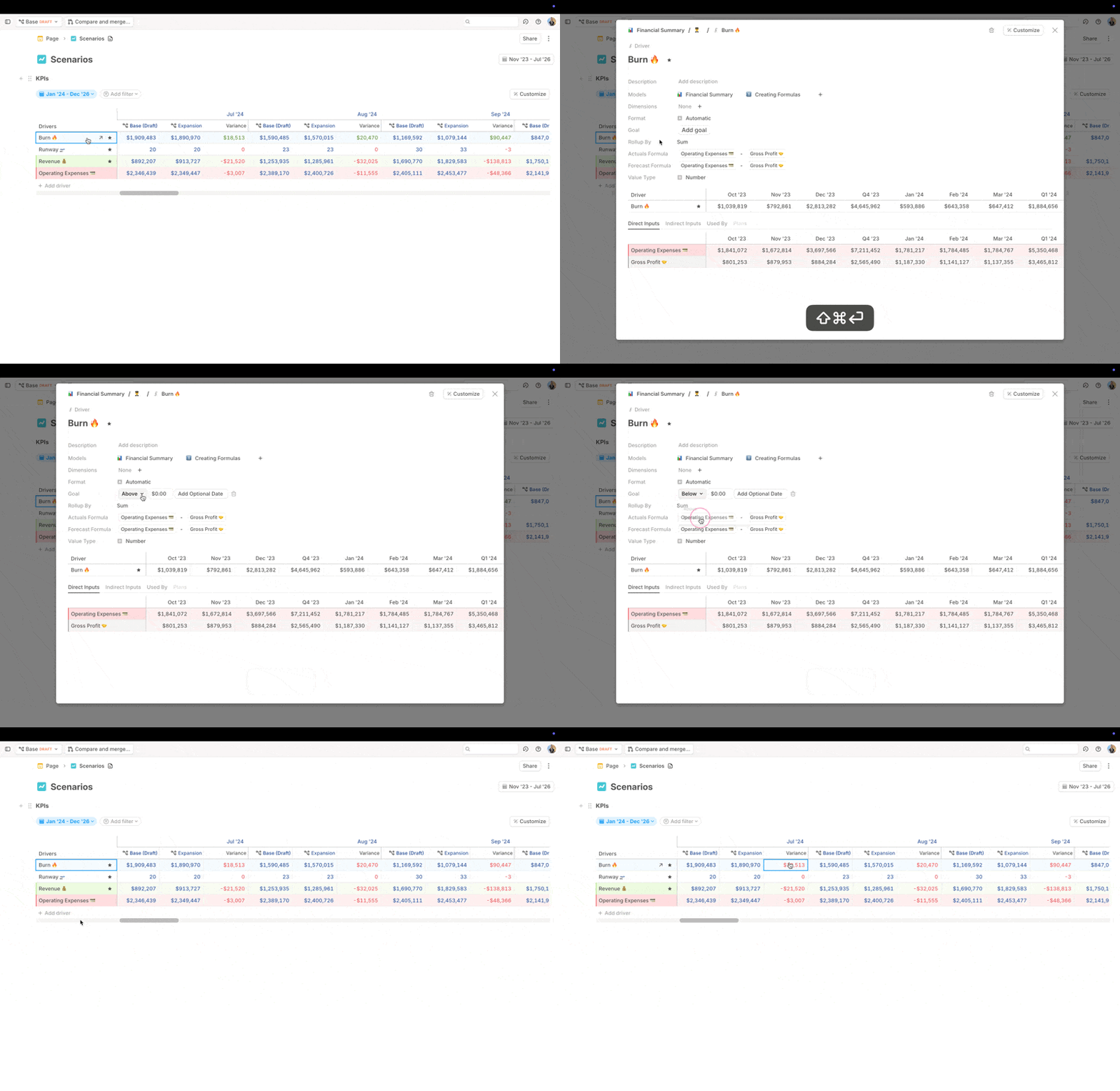
- Compare & merge compares your edits with Main and merges them if you have merge access.
- Discard draft removes the draft edits and returns you to Main.
Creating a new scenario
1
Open scenarios
Open the scenarios list in the top-left area of Runway.
2
Create the scenario
Click + New scenario.
3
Name it
Give the scenario a name and choose an icon or emoji.
4
Start editing
The new scenario starts as a copy of Main. Edits you make affect only that scenario unless merged.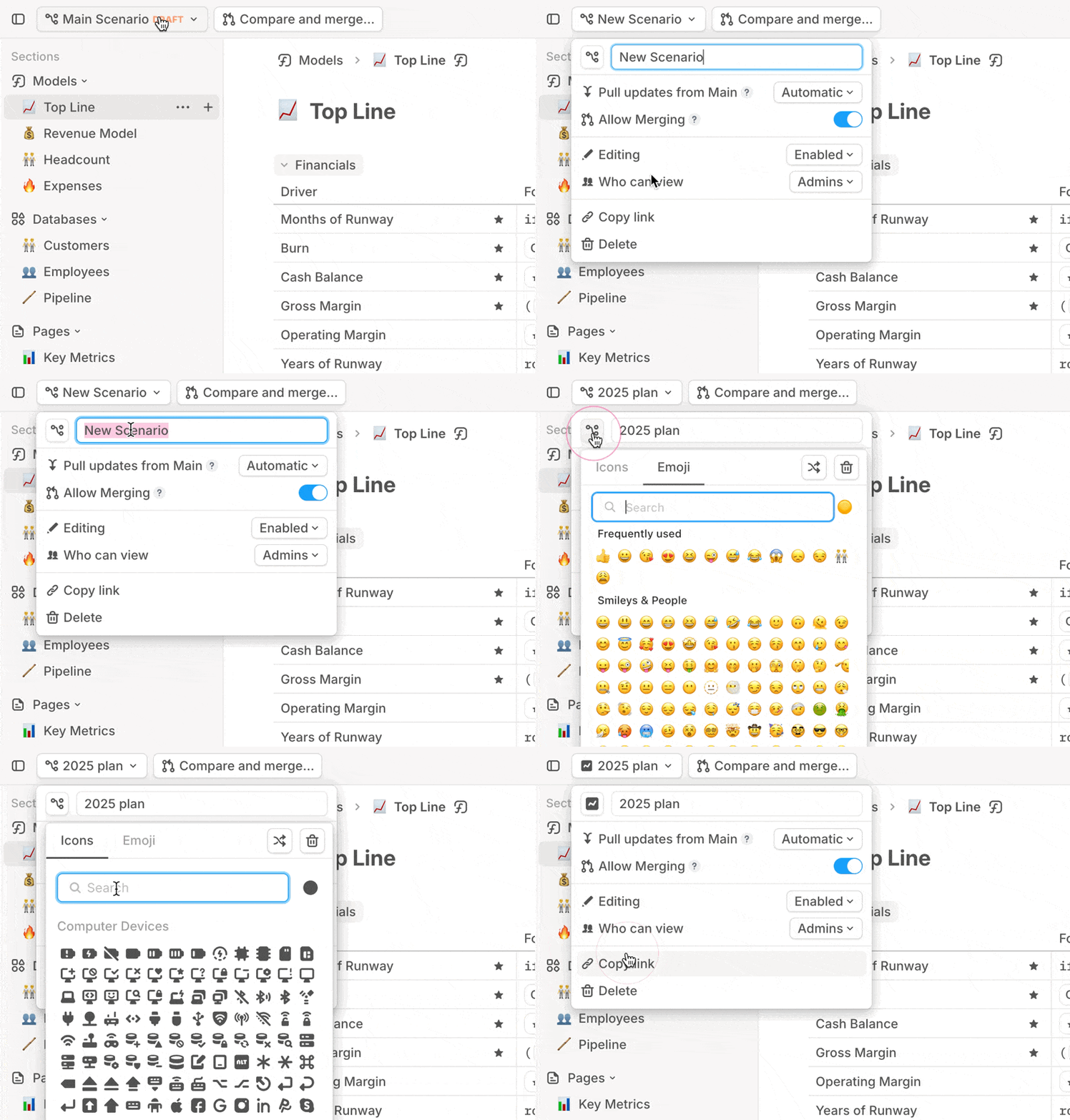
You can also save a draft as a scenario using Save draft as scenario….
Duplicating scenarios
Use Duplicate scenario when you want a new scenario that starts from an existing scenario’s assumptions. Duplicating a normal scenario creates a copy named{Name} (Copy) that keeps pulling updates from Main. Duplicating a locked scenario creates a locked copy. The menu item changes to Duplicating… while Runway creates the copy.
Duplication is not available on Main, on drafts, or when you do not have scenario-creation access. See Permissions for access details.
Pulling updates from Main
By default, scenarios inherit non-conflicting updates from Main. To prevent Main updates from affecting a scenario, open scenario settings and set Pull updates from Main to Disabled.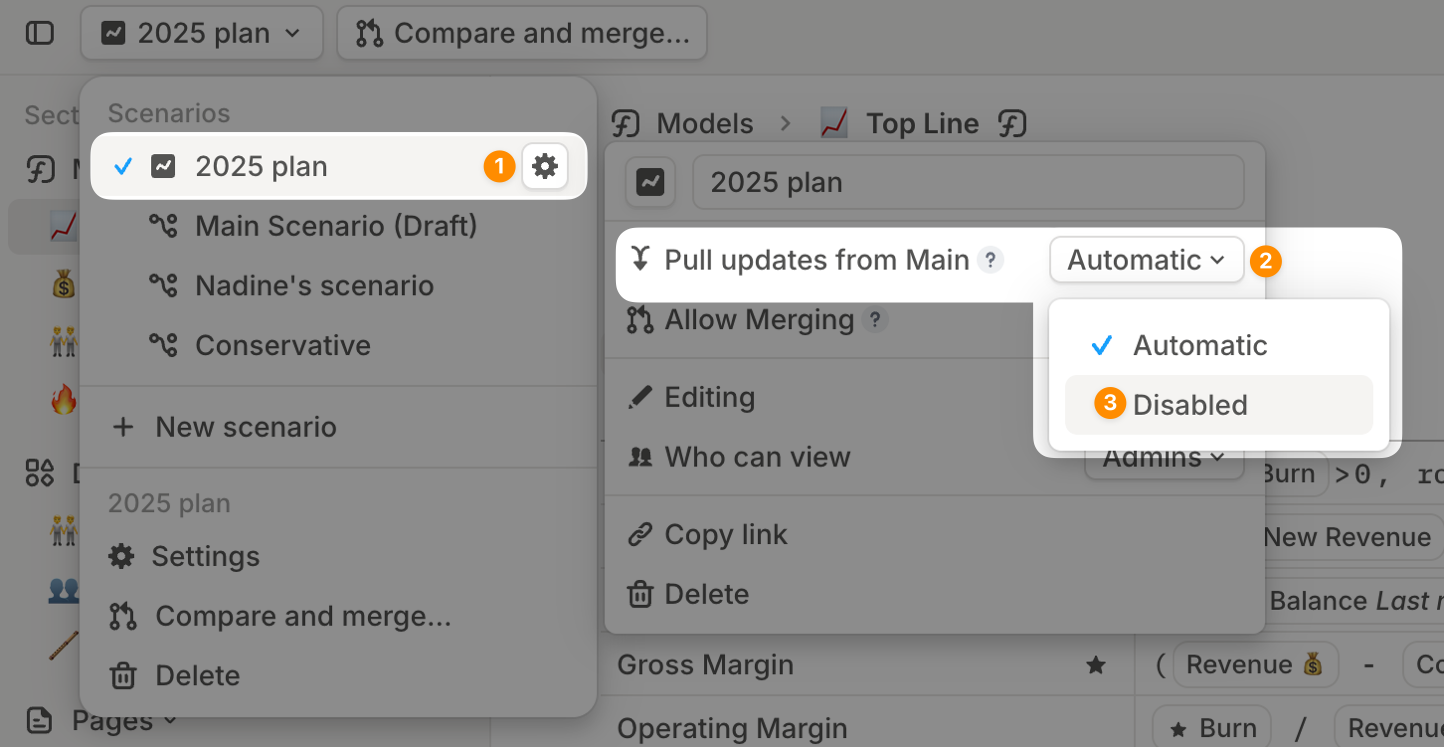
Locked scenarios
Locked scenarios preserve a version of the model so it cannot be edited accidentally. You can create locked scenarios from two places:- On Main, use Save draft as scenario… to save the draft as a scenario.
- In the activity history pane, use Save as locked scenario from a change’s overflow menu.
Scenario settings
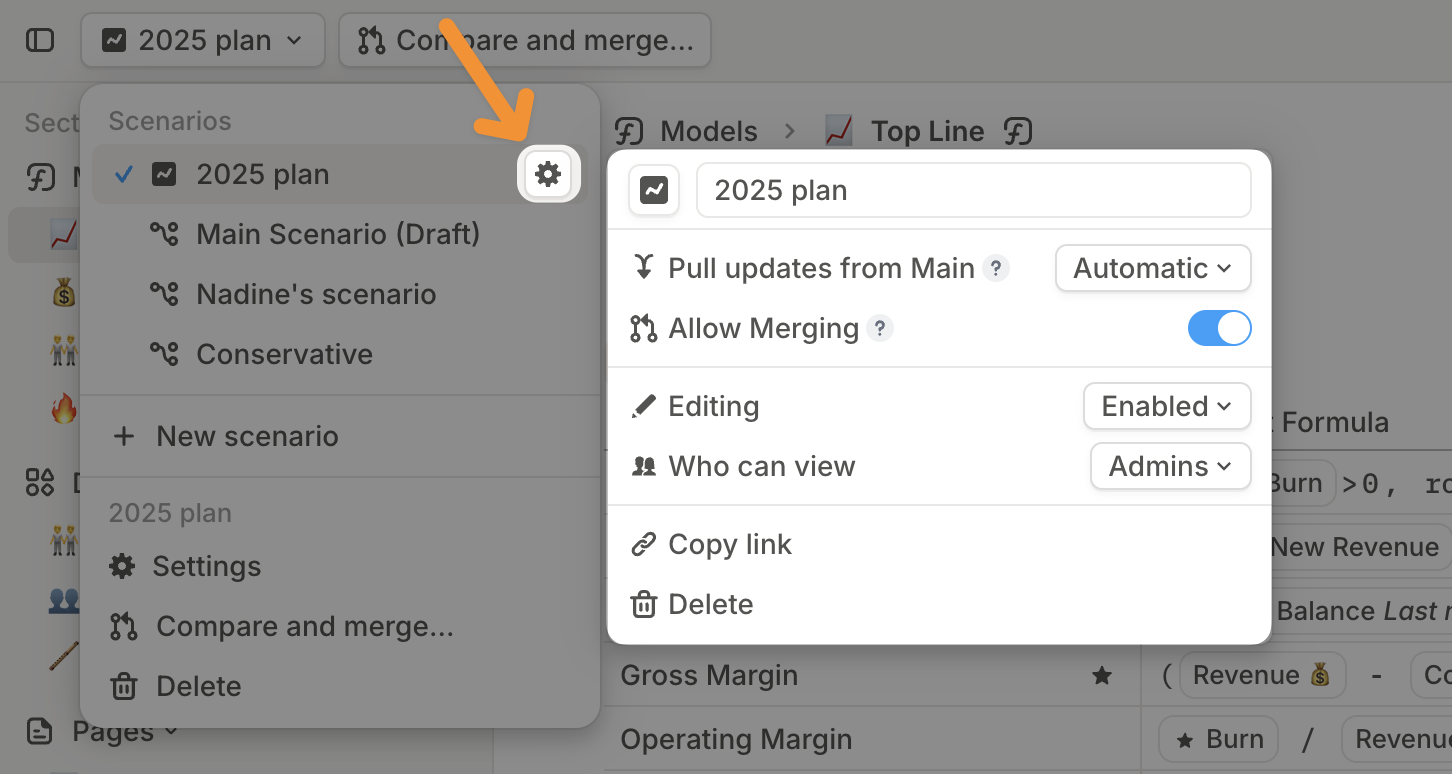
In the scenarios list, open settings next to a scenario name to adjust:- Renaming and icon: Update the scenario name or emoji/icon.
- Pull updates from Main: Choose Automatic or Disabled.
- Allow Merging: Allow or block merging into Main.
- Editing: Control whether edits can be made.
- Who can view: Control who can access the scenario.
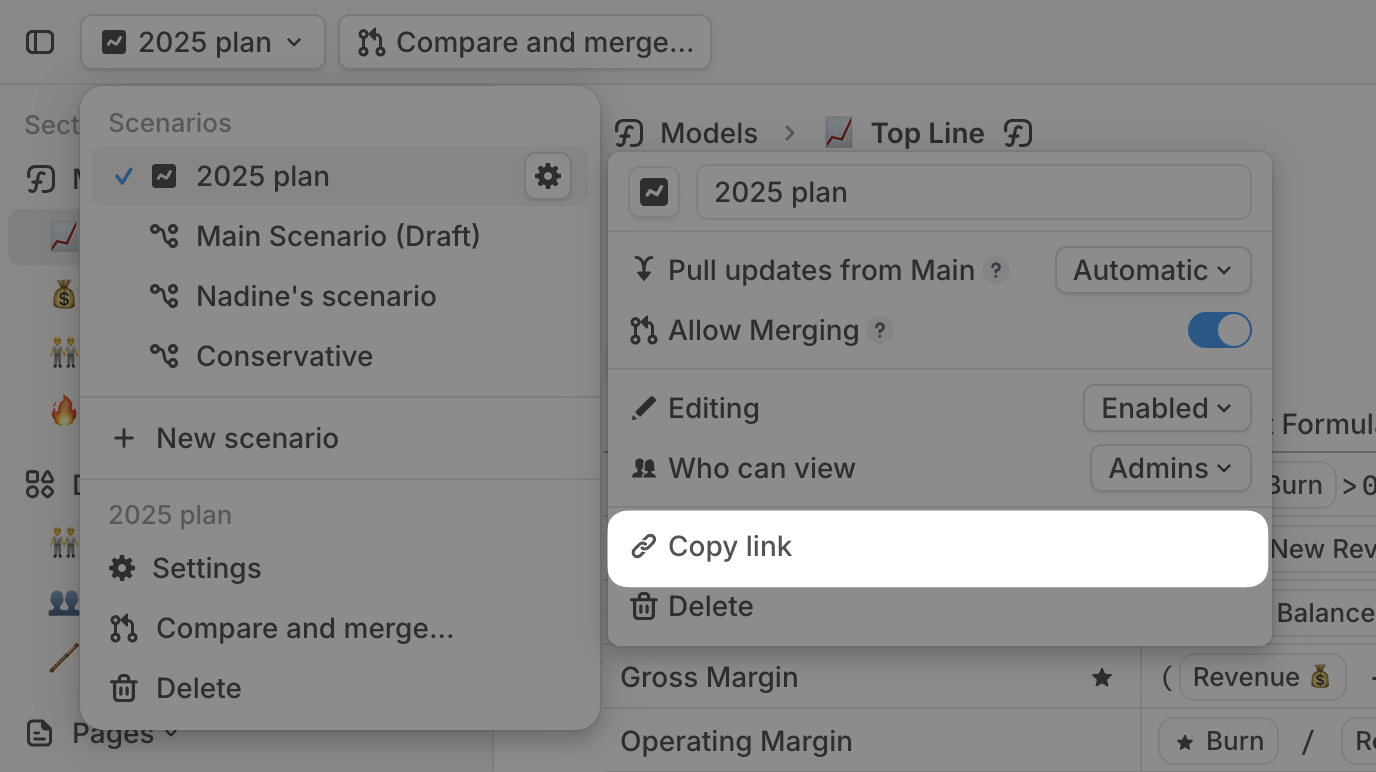
- Copy link: Copy a link to the scenario.
- Delete: Remove a scenario you no longer need.
Merging scenarios
Scenarios work by layering edits on top of Main. Merging applies the scenario’s selected changes to Main. Merge access is controlled by permissions; see Permissions.1
Open the scenario
Navigate to the scenario you want to merge.
2
Compare with Main
Click Compare and merge to compare the scenario against Main.
3
Review and confirm
Review the changes, then confirm the merge if the scenario should update Main.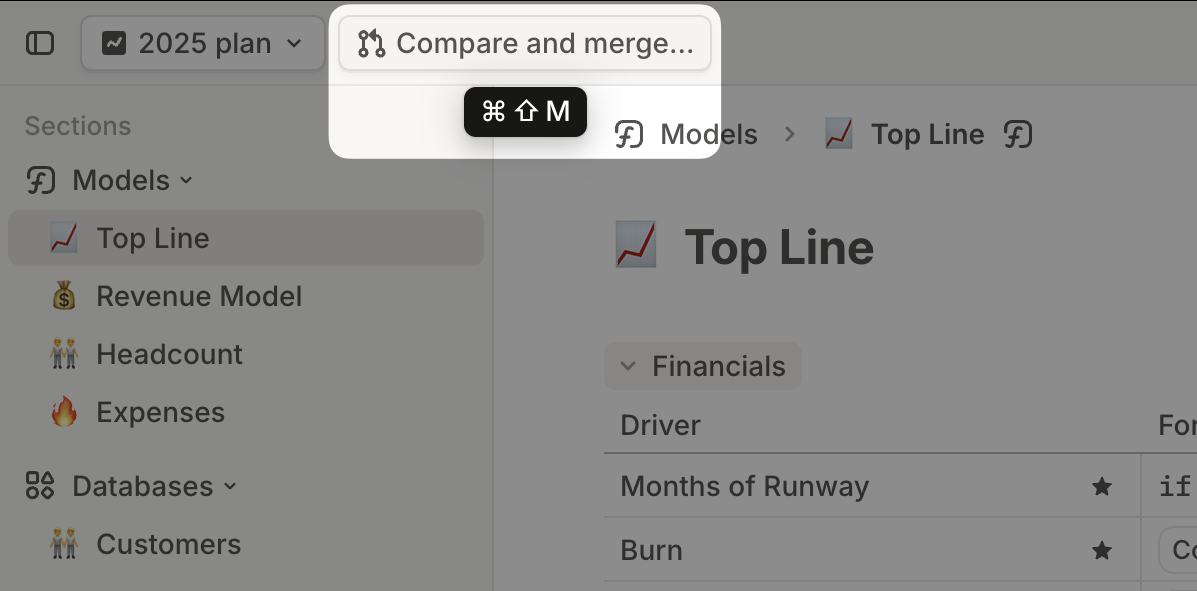
How merging affects other scenarios
Each scenario keeps its own edits until those edits are merged. For example, if two people edit Driver A in separate drafts, each draft keeps its own version. If one draft merges first, the other draft still keeps its own Driver A edit until it is merged or discarded. When the second draft later merges, its Driver A change can overwrite the first merged version in Main. If a scenario has Pull updates from Main set to Automatic, non-conflicting changes merged into Main can appear in that scenario. Its own scenario-specific edits remain local.Comparing scenarios
Tabular comparison in pages and models
1
Open a model or driver table
Open a model or create a Driver table block on a page.
2
Add drivers
Add the drivers you want to compare across scenarios.
3
Open Compare
Click Customize, select Compare, then choose the scenarios.
4
Review variance
The default comparison view includes variance rows. You can also add or remove Variance and Variance % from the same menu.
5
Choose layout
Show scenarios as rows or columns.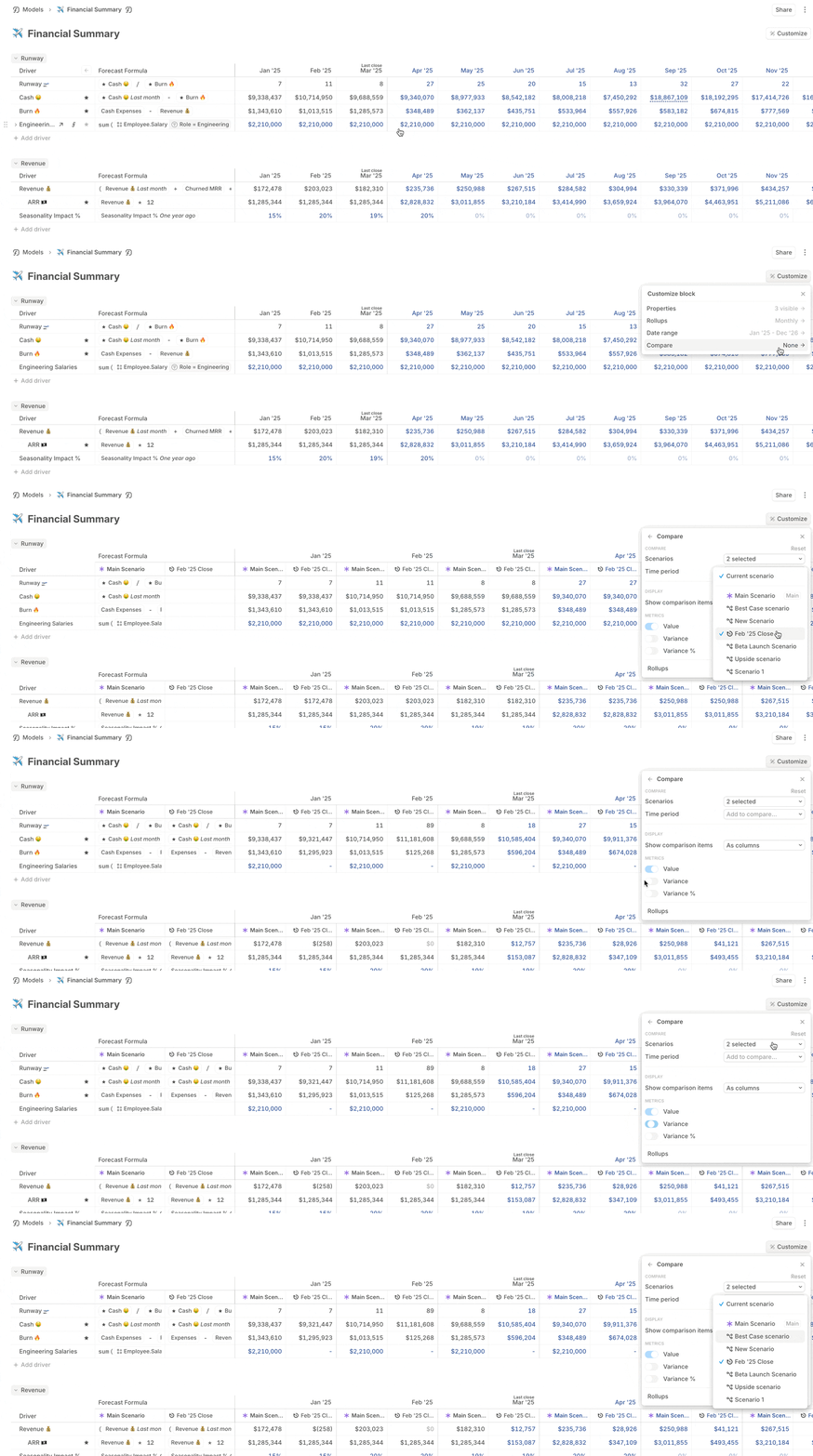
Graphical comparison in pages
1
Create a chart
Create a Driver charts block on a page.
2
Add drivers
Add the drivers you want to compare.
3
Choose scenarios
Click Compare, then choose the scenarios.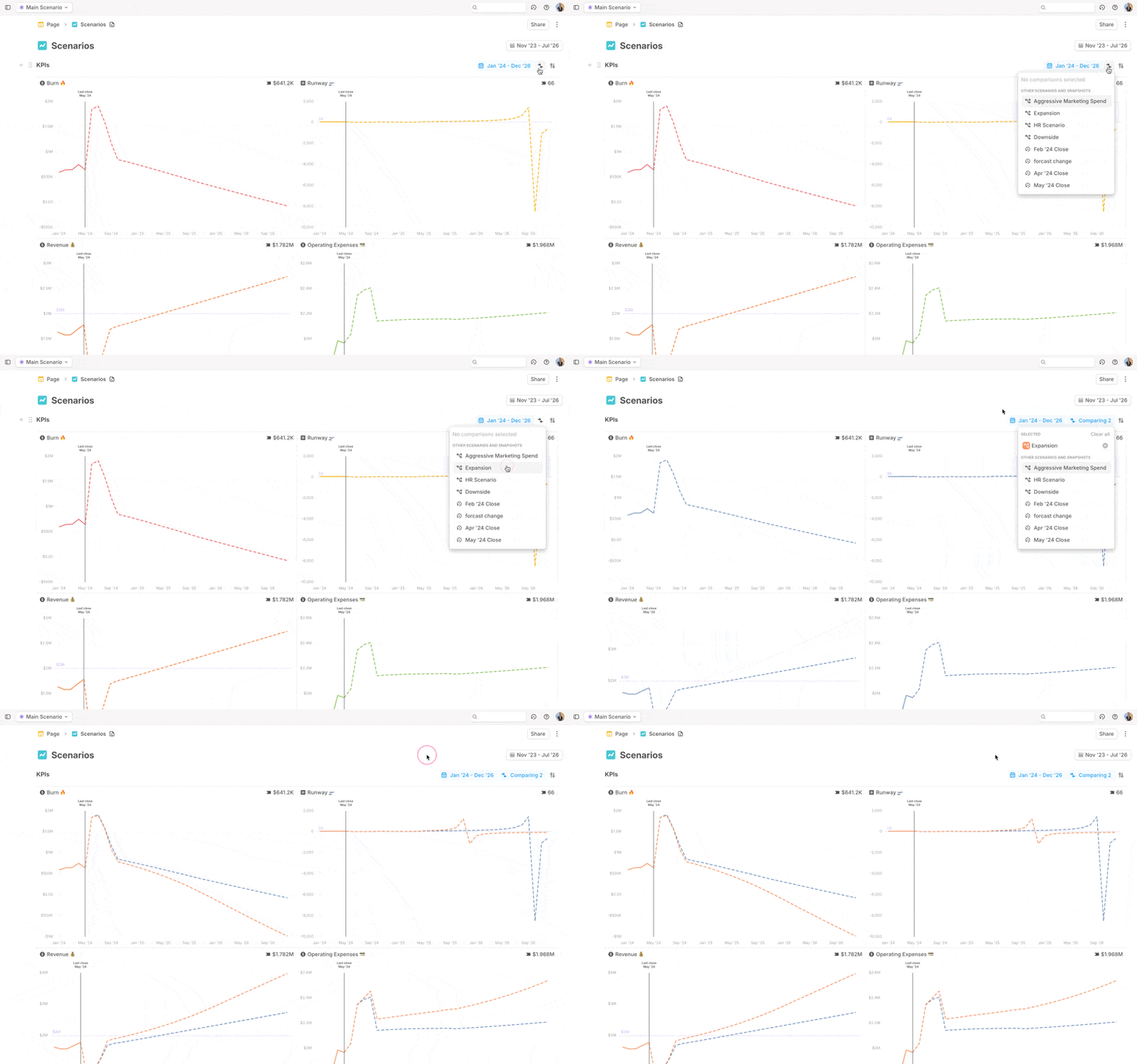
FAQ
Can I re-enable Pull updates from Main after disabling it?
Can I re-enable Pull updates from Main after disabling it?
Yes. Switch Pull updates from Main back to Automatic. Runway will pull in non-conflicting existing and future changes from Main, so review the scenario after re-enabling it.
Can I duplicate a locked scenario?
Can I duplicate a locked scenario?
Yes. Duplicate scenario preserves the locked state, so the copy is also locked.