Driver groups keep models readable as they grow. Use groups when related drivers should collapse together, move together, or be referenced together.

Why use driver groups?

Grouping drivers creates collapsible sections in a model.
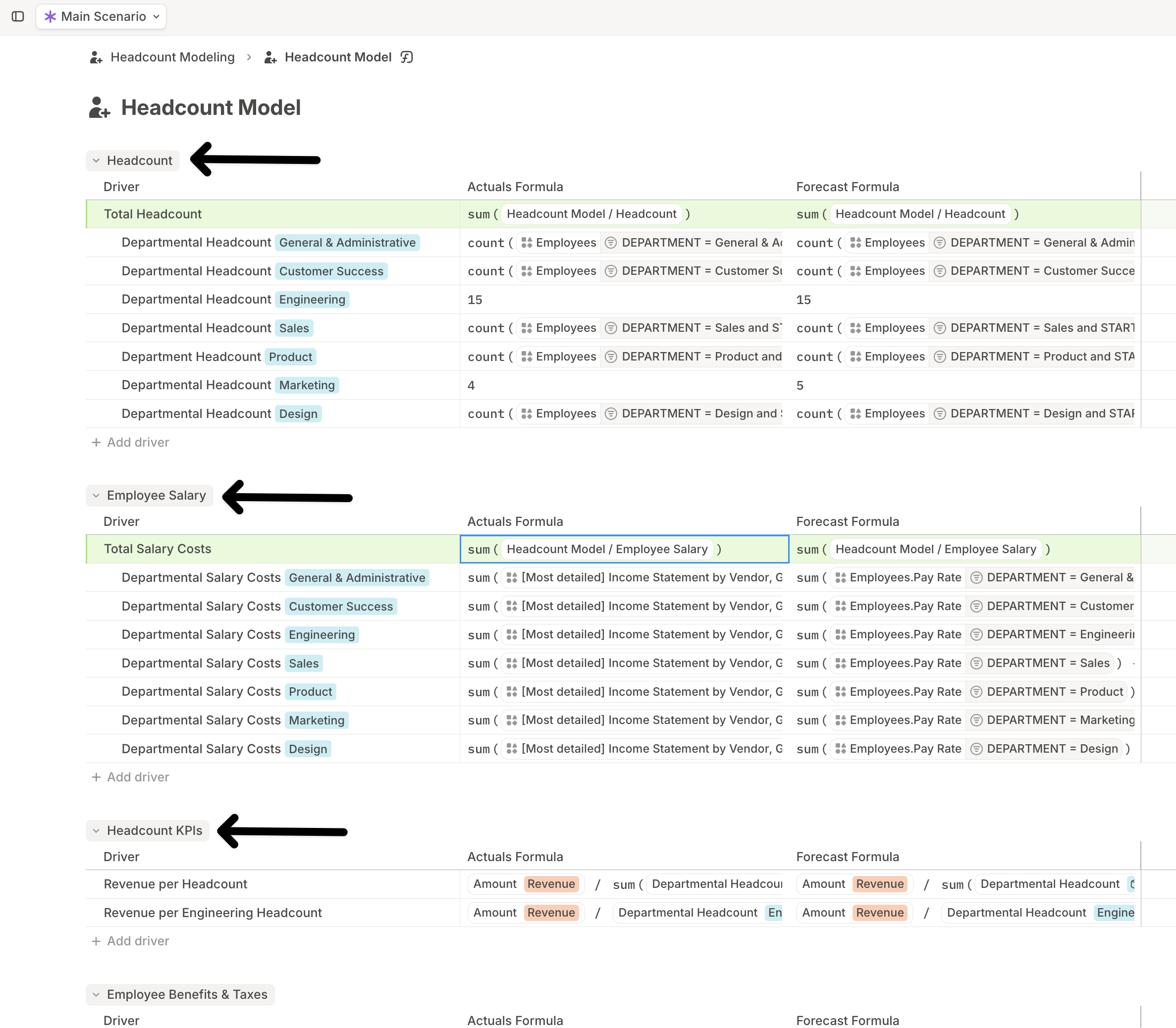
Model with drivers organized into collapsible groups
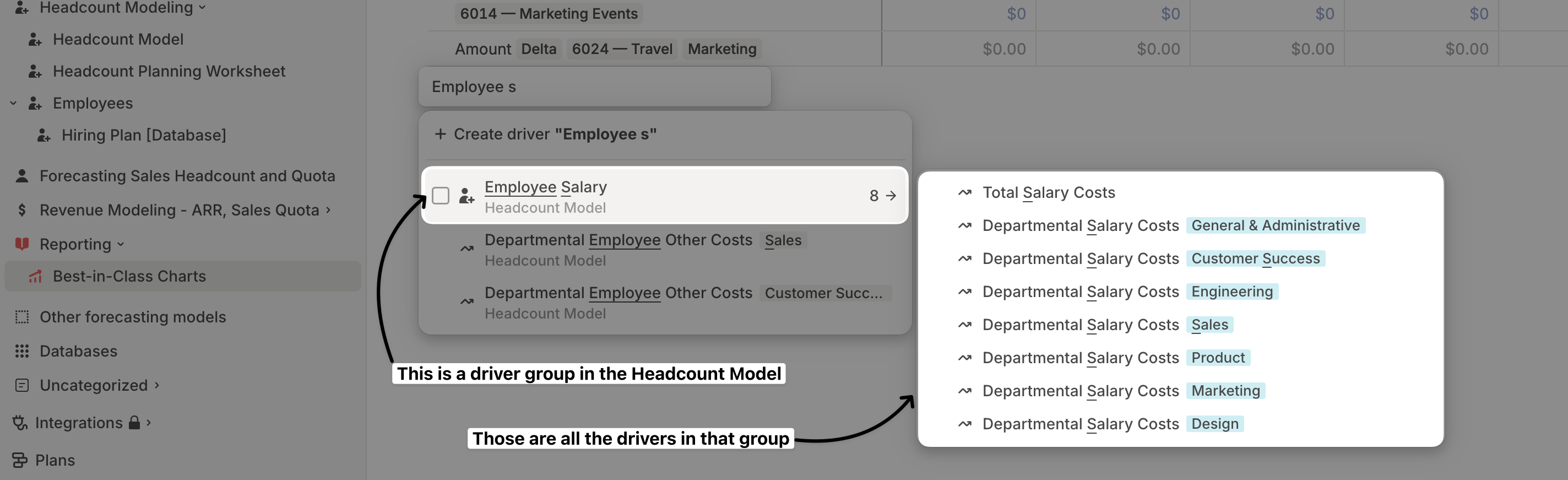
Groups also make drivers easier to find and reuse. When adding drivers to a block, search by group name to include all or part of a group.
Driver search showing a model group result
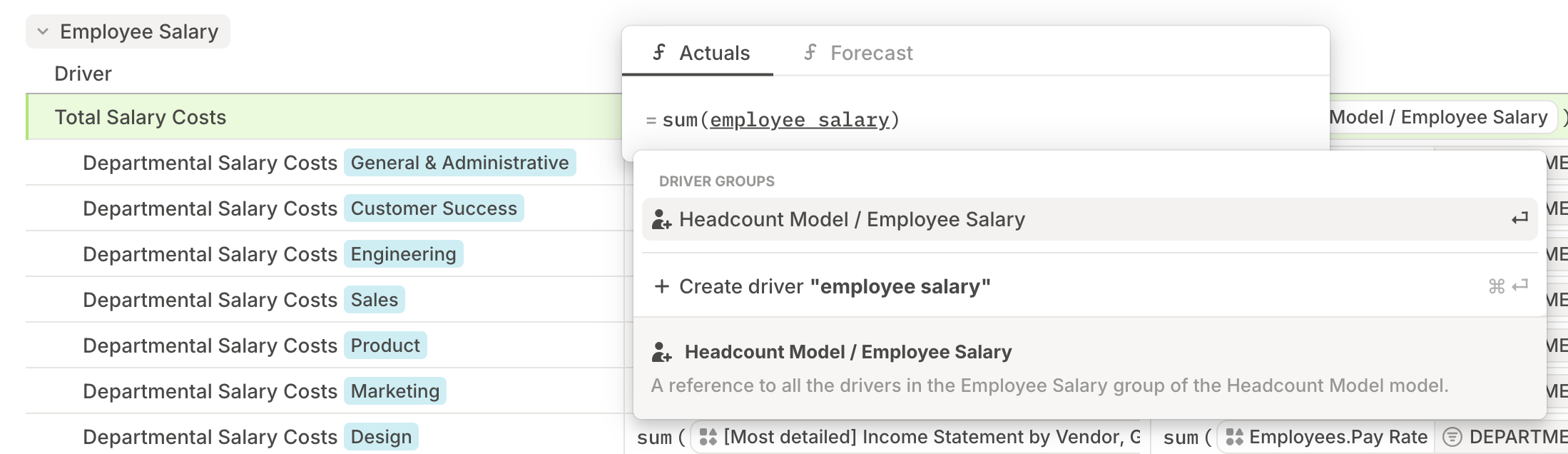
You can also reference a whole driver group in formulas instead of selecting each driver individually.
Formula editor referencing a driver group

How to group drivers

1

Select and group

Select the drivers you want to group, then right-click and choose Group. You can also use the grouping shortcut listed in Keyboard shortcuts.
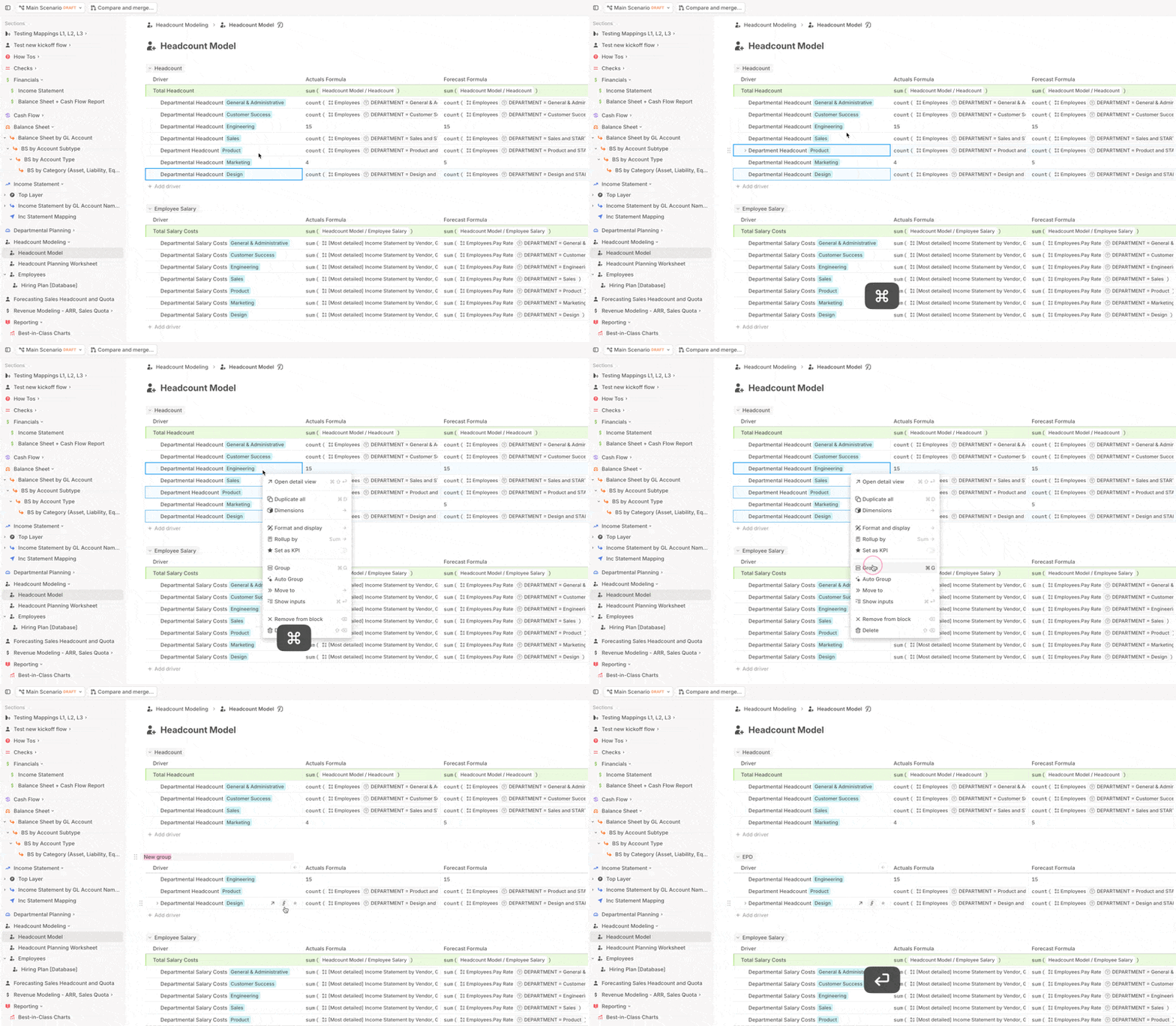
Selected drivers grouped from the context menu
2

Name the group

Give the new group a descriptive name.
3

Or create the group first

Scroll to the bottom of the model, click + Create group, name the group, then drag drivers into it.
Empty driver group created before drivers are added
Once your groups are set up, drag and drop groups to reorder them.

What’s next