

Why segment drivers?
Easier and scalable modeling
Without dimensions, modeling Growth Rate by Region might require separate drivers such asGrowth Rate - US and Growth Rate - EMEA. That naming pattern gets hard to maintain, and totals must reference each driver manually.
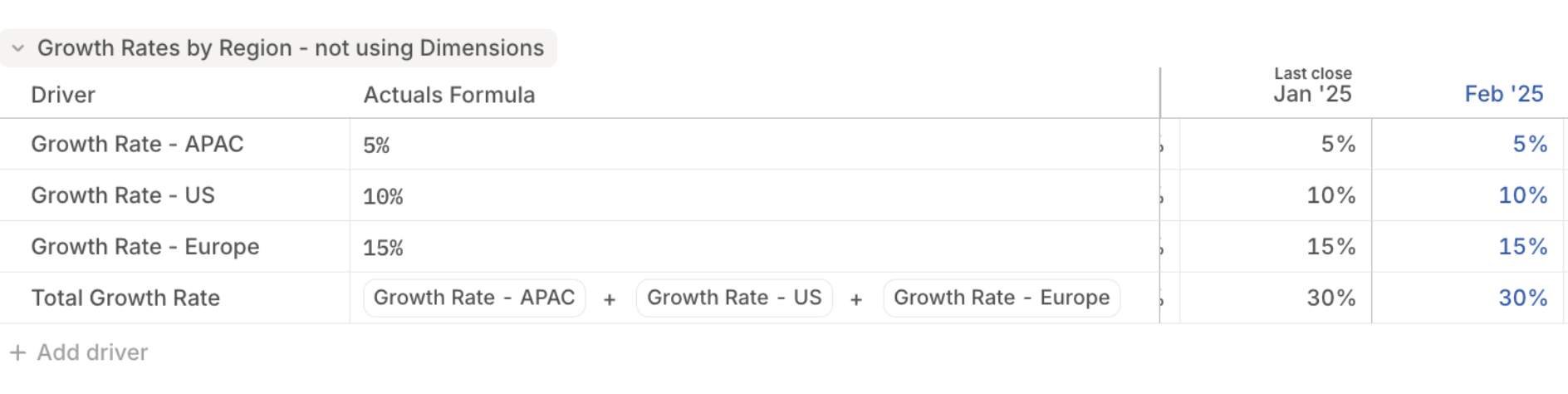
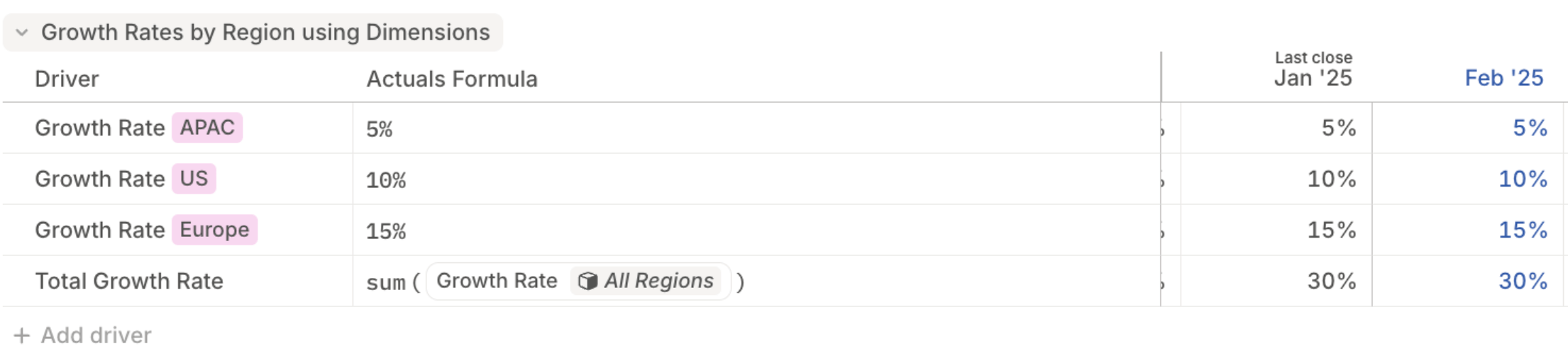
Roll up and drill into data
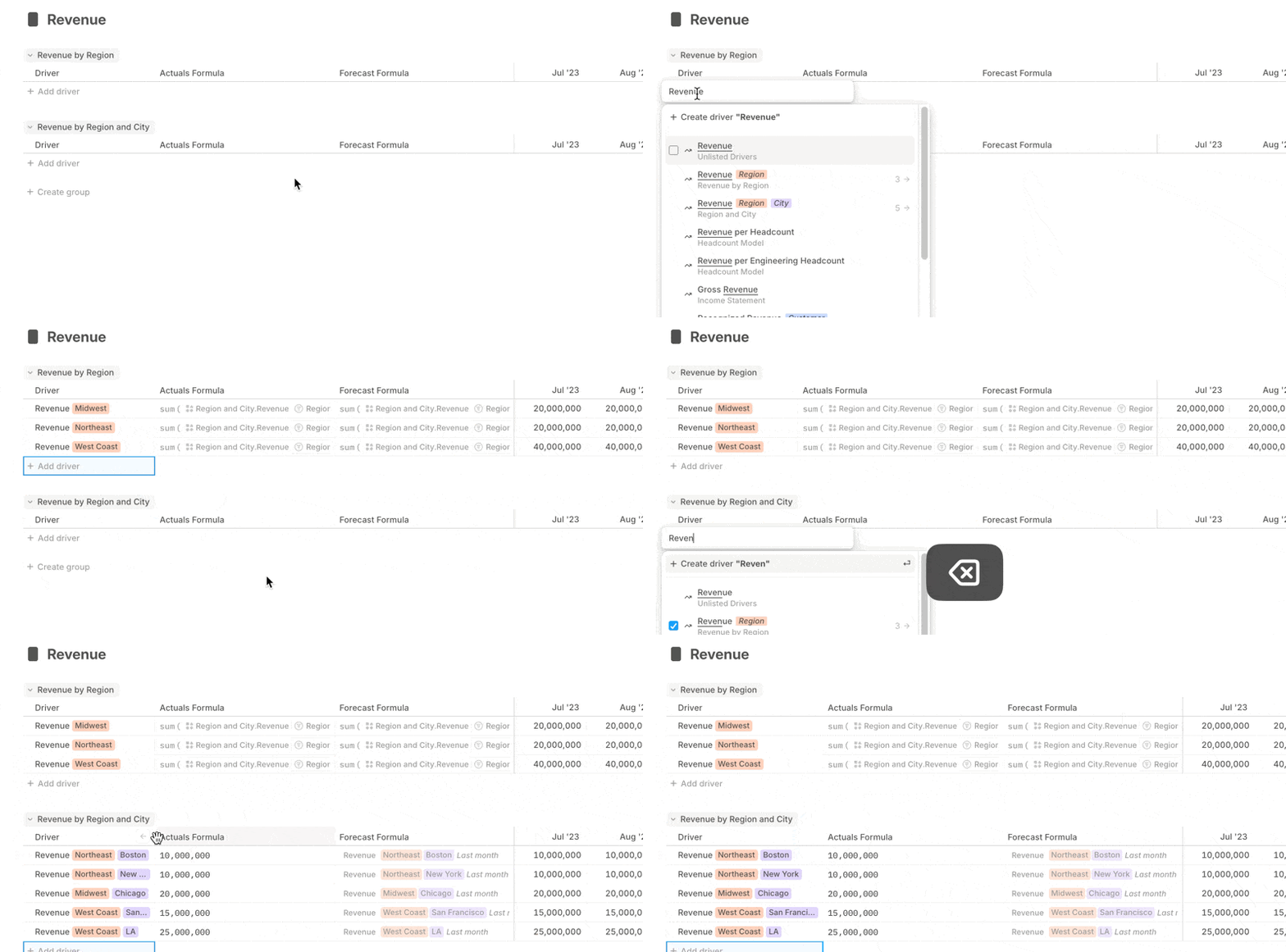
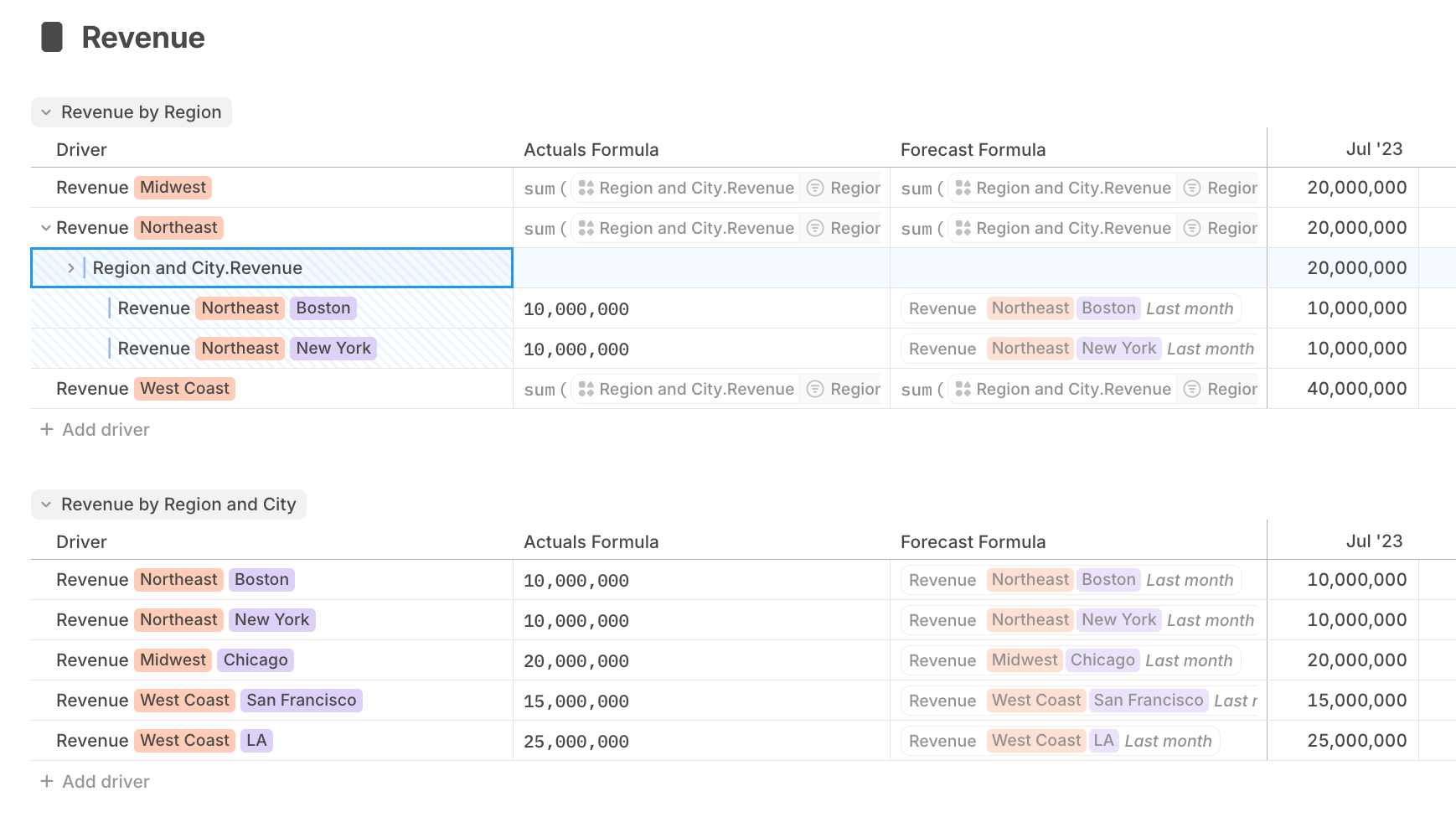
Dimensions make it easier to model at different levels of granularity. For example, a database with Revenue segmented by Region and City has one driver per region-city combination.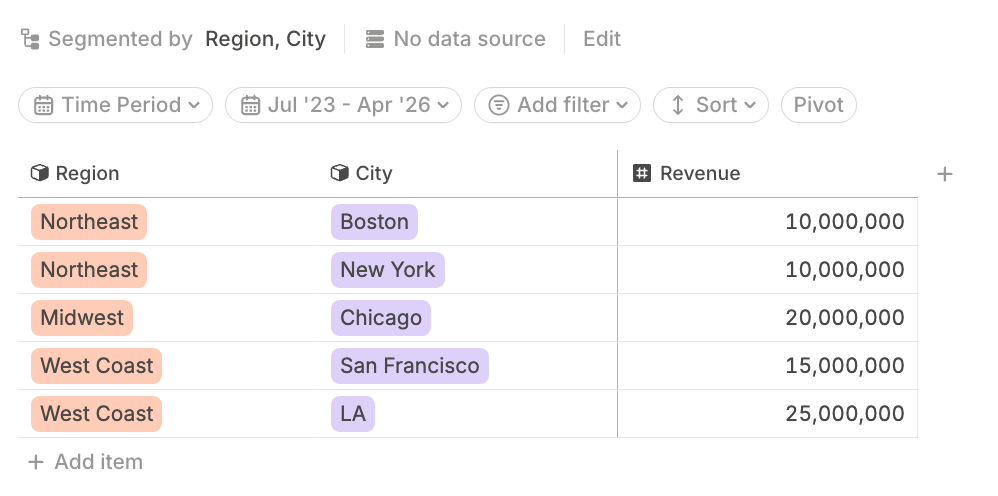
1
Open or create the rollup database
Open the target database where the rolled-up data should live, or create a database.
2
Open configuration
Click Edit to open database configuration.
3
Add the source
Add the source database that is segmented by Region and City.
4
Choose drivers
Choose the drivers you want to aggregate, such as Revenue.
5
Choose the rollup segment
Under Segment by, select the higher-level dimension, such as Region.
6
Confirm
Click Confirm.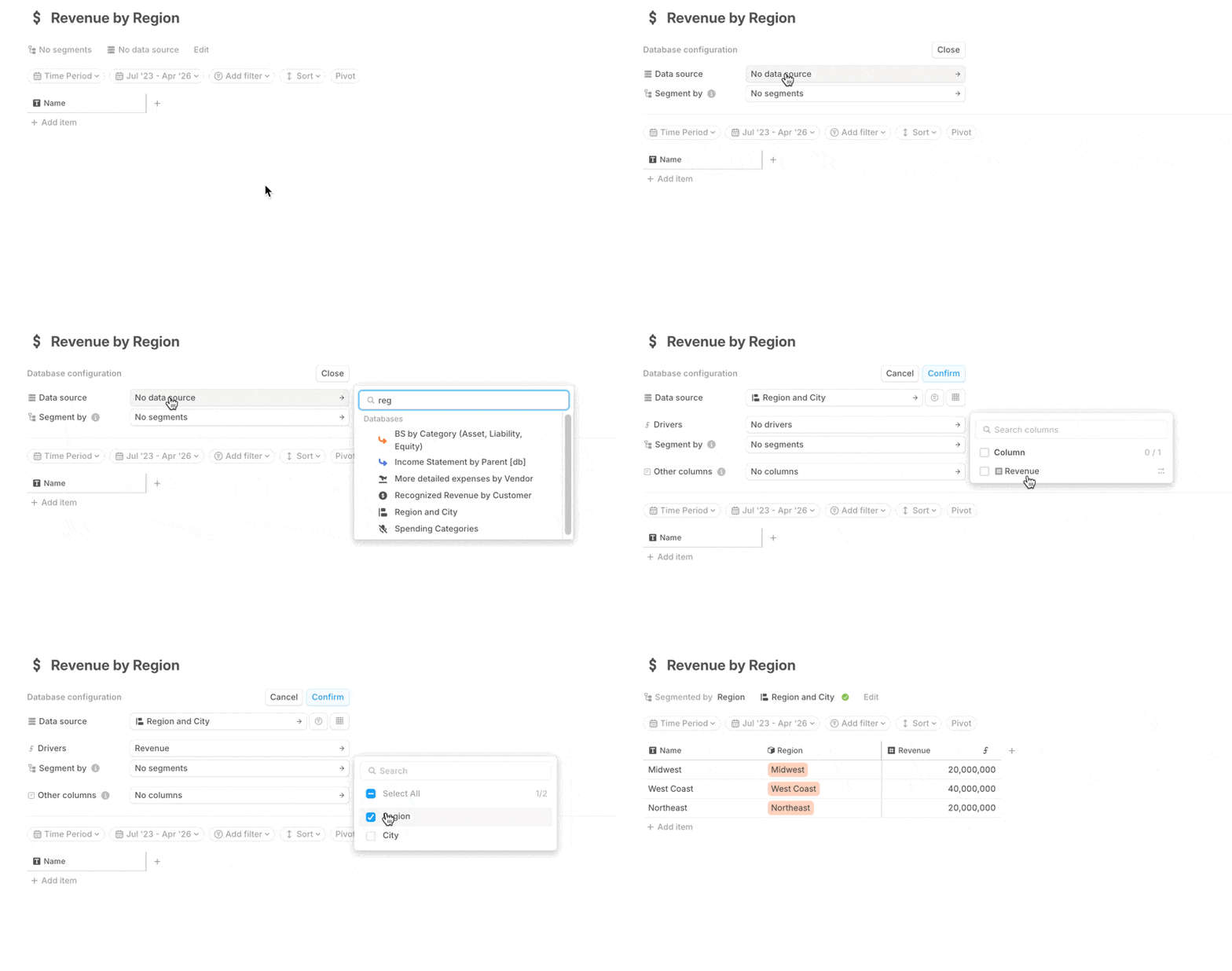
How to segment drivers
Segmenting drivers in a database
When configuring a database, the Segment by field determines how the drivers in that database are broken down.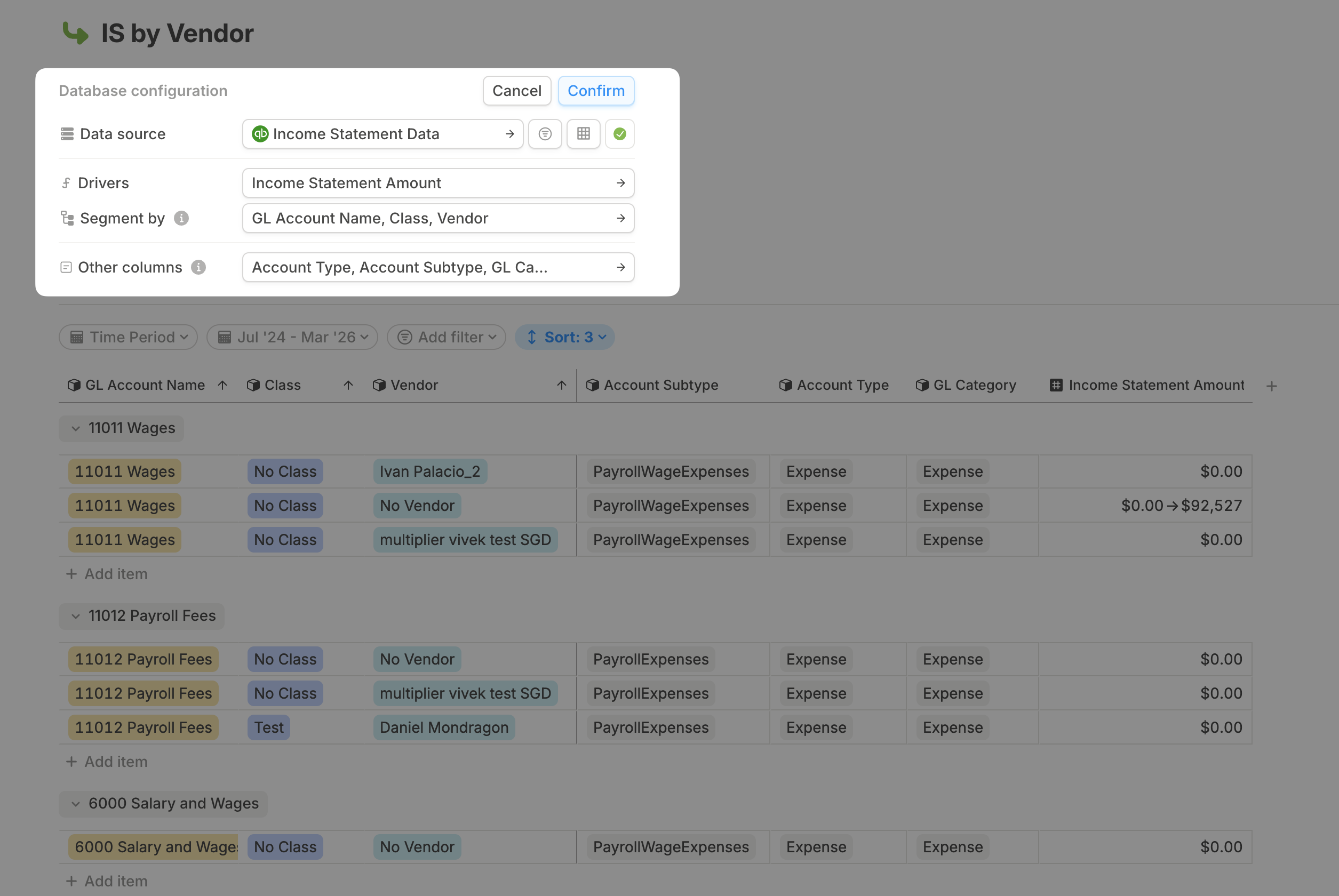
Account Name, Class, and Vendor. A later rollup database might source from that granular database but segment only by Class.
Segmenting drivers in a model
You can segment an unsegmented driver in a model:1
Open the driver menu
Click the menu next to the driver name.
2
Add dimension
Hover over Dimensions, then select Add dimension.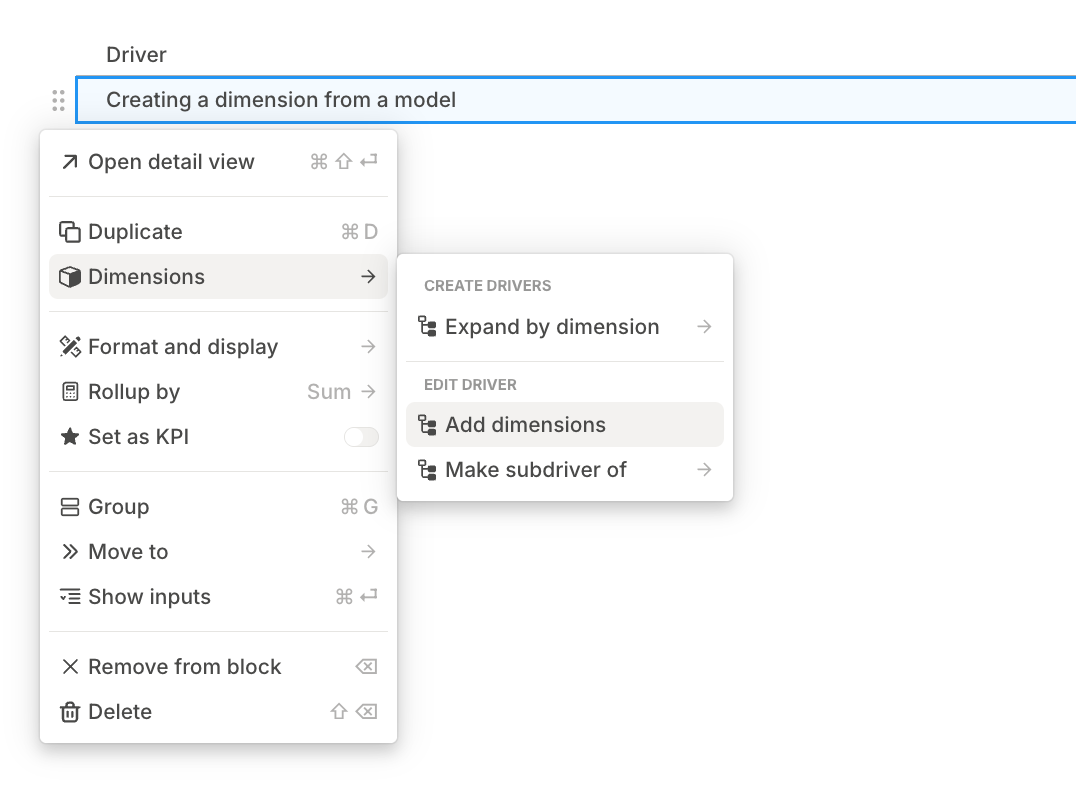
3
Choose or create the dimension
Choose an existing dimension, or type a new name and press Enter to create one.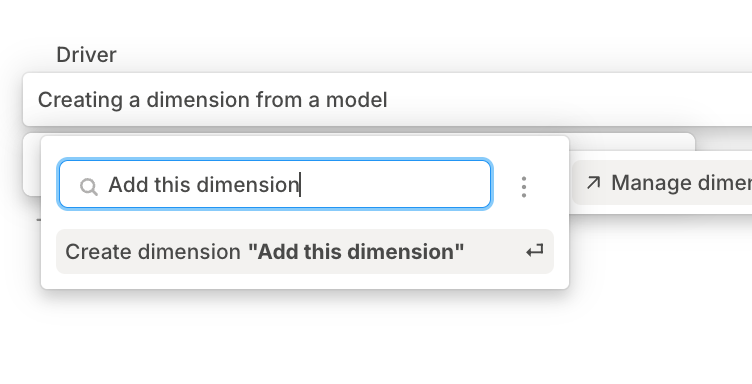
4
Define values
Define the dimension values from the submenu.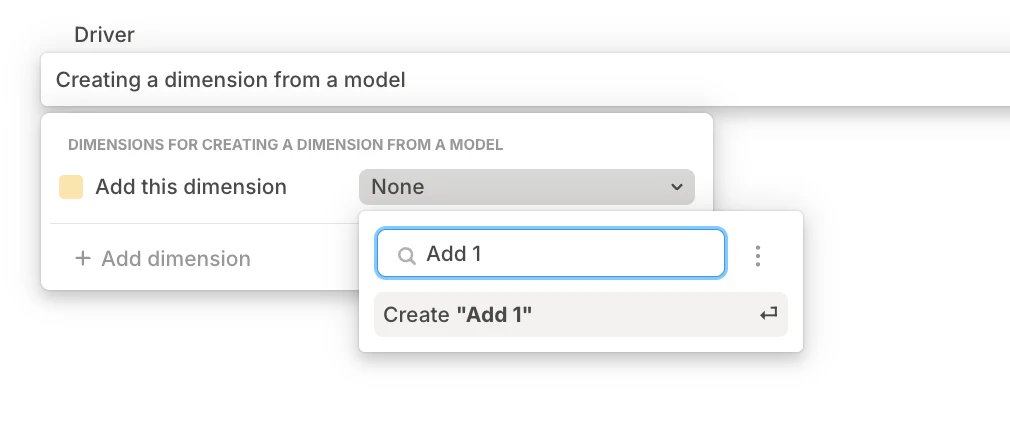
Segmenting drivers in a model using Expand by dimension
Use Expand by dimension when you need one driver per dimension value from a model. This pattern is most common in legacy headcount models.1
Select the driver
In a model, select the driver you want to expand.
2
Choose Expand by dimension
Open the driver menu, hover over Dimensions, then select Expand by dimension.
3
Choose the dimension
Select the dimension to use as the segment. Runway creates one driver segmented by each value in that dimension.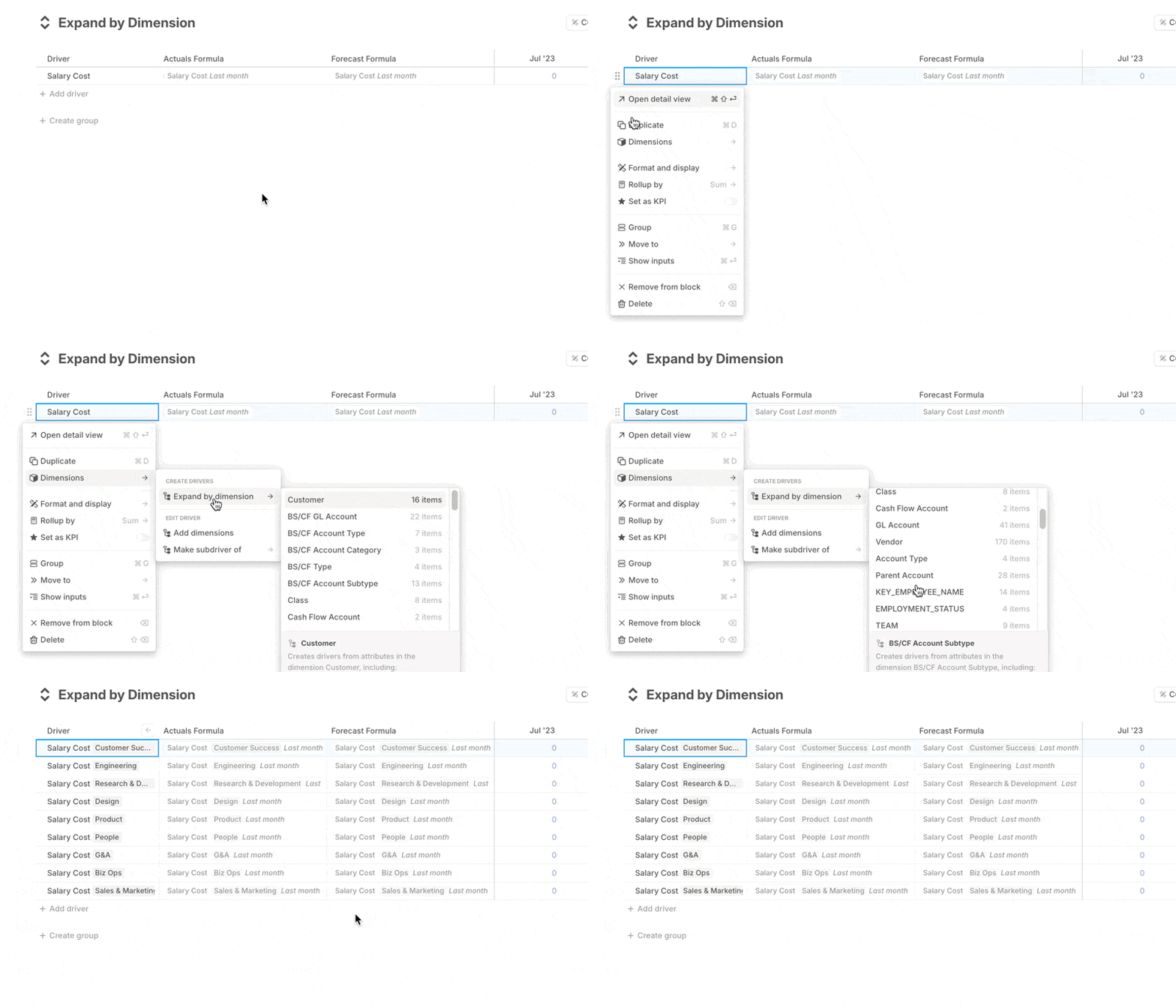
4
Set a formula first when possible
Expand by dimension works best when the source driver already has a formula filtered by the dimension you plan to use.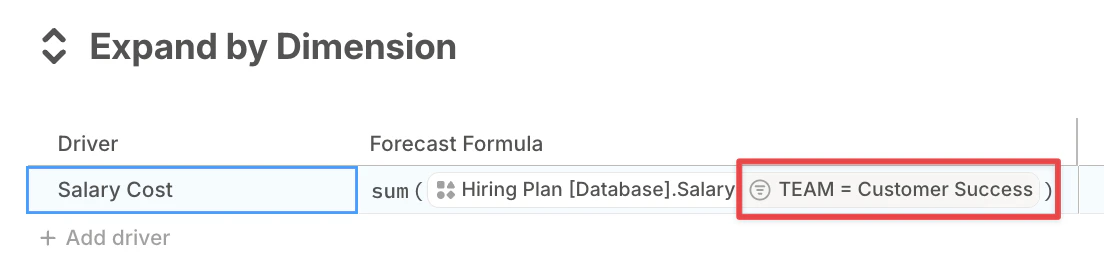
5
Review smart-matched formulas
When the formula uses the same dimension as a filter, Runway smart-matches the formula to each dimension value.