> ## Documentation Index
> Fetch the complete documentation index at: https://runway-docs.cfo.ai/llms.txt
> Use this file to discover all available pages before exploring further.
# Adding users
> Invite people to Runway from the Share sheet and choose the access they should receive.
Use the **Share** sheet when you want to invite people to Runway and give them access to a page, model, database, section, block, or scenario. Invited users default to the Member role; use [Roles and access](/reference/roles-and-access) and [Permissions](/guides/sharing/permissions) to choose the right resource access.
## Invite people from the Share sheet
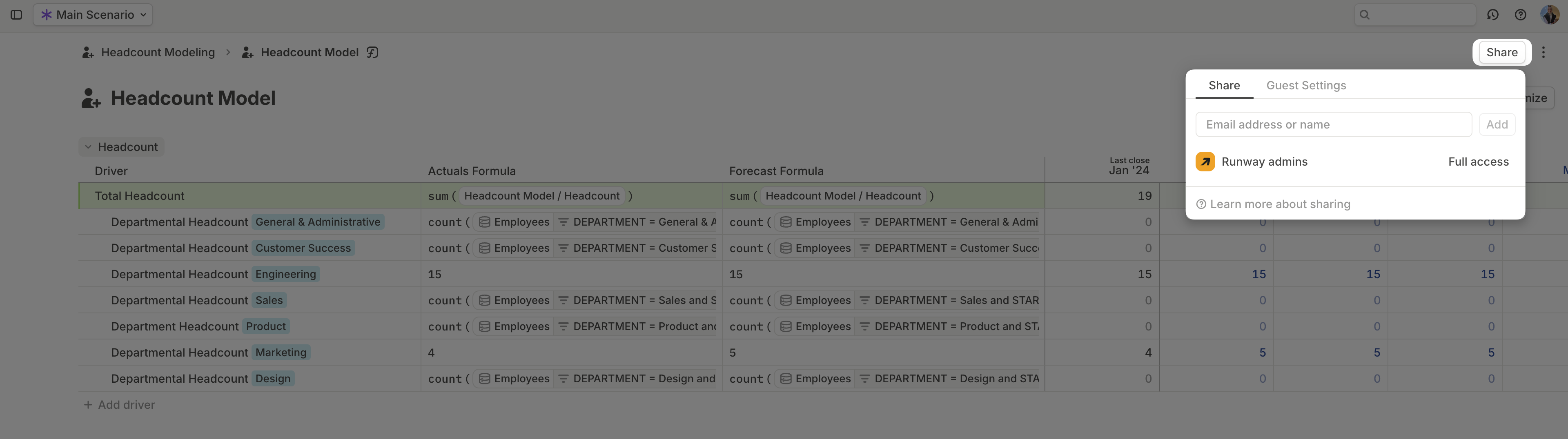
Open the resource you want to share, then click **Share**.
Select the **People** tab.
Use the field labeled **Email, name or group, separated by commas**. You can enter one person, multiple people, or an existing group.
Pick the access level for each invitee, then click **Add**.
Leave **Notify via email** on to send an invitation. Add an **Optional message** when the invite needs context.
 ## Pending invites
People who have been invited but have not joined yet show a **Pending** badge. After they join, they appear as workspace users and can be managed through sharing settings.
## Org-wide access
The **Everyone at \{org}** row controls default access for everyone in your workspace. Use it when a resource should be broadly visible or editable inside your org, and use individual rows or groups for narrower exceptions.
Role and resource access are separate. Inviting someone makes them a Member by default, but the resource access you choose still controls what they can do on the shared item.
## When to use links or groups instead
Use [share links](/guides/sharing/share-links) when you want a page-level link for people outside your org. Use [groups](/guides/sharing/groups) when the same set of people should receive access to multiple resources.
## FAQ
Invited users default to the Member role. See [Roles and access](/reference/roles-and-access) for what that role means.
Yes. Enter multiple emails, names, or groups in **Email, name or group, separated by commas**.
Yes. Use the **Everyone at \{org}** row to set org-wide access for the resource.
## What's next
* [Share links & guest access](/guides/sharing/share-links)
* [Groups](/guides/sharing/groups)
* [Permissions](/guides/sharing/permissions)
## Pending invites
People who have been invited but have not joined yet show a **Pending** badge. After they join, they appear as workspace users and can be managed through sharing settings.
## Org-wide access
The **Everyone at \{org}** row controls default access for everyone in your workspace. Use it when a resource should be broadly visible or editable inside your org, and use individual rows or groups for narrower exceptions.
Role and resource access are separate. Inviting someone makes them a Member by default, but the resource access you choose still controls what they can do on the shared item.
## When to use links or groups instead
Use [share links](/guides/sharing/share-links) when you want a page-level link for people outside your org. Use [groups](/guides/sharing/groups) when the same set of people should receive access to multiple resources.
## FAQ
Invited users default to the Member role. See [Roles and access](/reference/roles-and-access) for what that role means.
Yes. Enter multiple emails, names, or groups in **Email, name or group, separated by commas**.
Yes. Use the **Everyone at \{org}** row to set org-wide access for the resource.
## What's next
* [Share links & guest access](/guides/sharing/share-links)
* [Groups](/guides/sharing/groups)
* [Permissions](/guides/sharing/permissions)