> ## Documentation Index
> Fetch the complete documentation index at: https://runway-docs.cfo.ai/llms.txt
> Use this file to discover all available pages before exploring further.
# Database block
> Another widely used block type in Runway is the database block. Databases are where most of your modeling and data lives in Runway. A database block lets you bring those databases—or specific filtered slices of them—into pages, so you can layer in context from across your model for clearer storytelling and easier collaboration.
In this article, we’ll explore how to leverage **database blocks** in a page—so you can bring the right slice of data into view, add context, and share it clearly with your team.
## Adding a database block to a page
1. Type **/** to open the block menu.
2. Select **Database table**.
3. Search for and select the database you want to surface.
This adds a view of the source database to your page. Keep reading to learn how to customize what’s shown.
## Customizing the block to fit the page’s purpose
In most cases, you won’t want to show the entire database on a page—just a relevant slice of it. Runway gives you several tools to tailor the view:
* **Filter** to specify which rows to show. Learn more in [Filtering, sorting & grouping](/concepts/databases/filtering-sorting-grouping#filtering).
* **Sort** to control the row order. Learn more in [Filtering, sorting & grouping](/concepts/databases/filtering-sorting-grouping#sorting).
* **Group** rows for better readability. Learn more in [Filtering, sorting & grouping](/concepts/databases/filtering-sorting-grouping#group-by).
* **Show or hide columns** to focus on what matters. Learn more in [Databases basics](/concepts/databases/databases-basics#show-and-hide-columns).
Destructive actions—like fully deleting (not filtering or hiding) a row or column—will affect the **source database** and **every other block** where that database is surfaced within the same scenario.
## Manually adding rows to a database block
When you share a page with a **database block**, you might expect teammates to manually add new rows—whether that’s planned headcount, vendors, or other entries.
Just note: any rows added from the block are **not limited to that block**. They are saved to the **source database** and will show up in **any other database block** where filters match the new row.
You can read more in [Adding a row](/concepts/databases/databases-basics#adding-a-row).
## Revealing anonymized data
When sharing database blocks, one of the most important data permissions to understand is [data anonymization](/guides/sharing/data-anonymization). If anonymization is enabled for a dimensional driver column, visibility follows the user's role and resource access. See [Permissions](/guides/sharing/permissions) for the current access model.
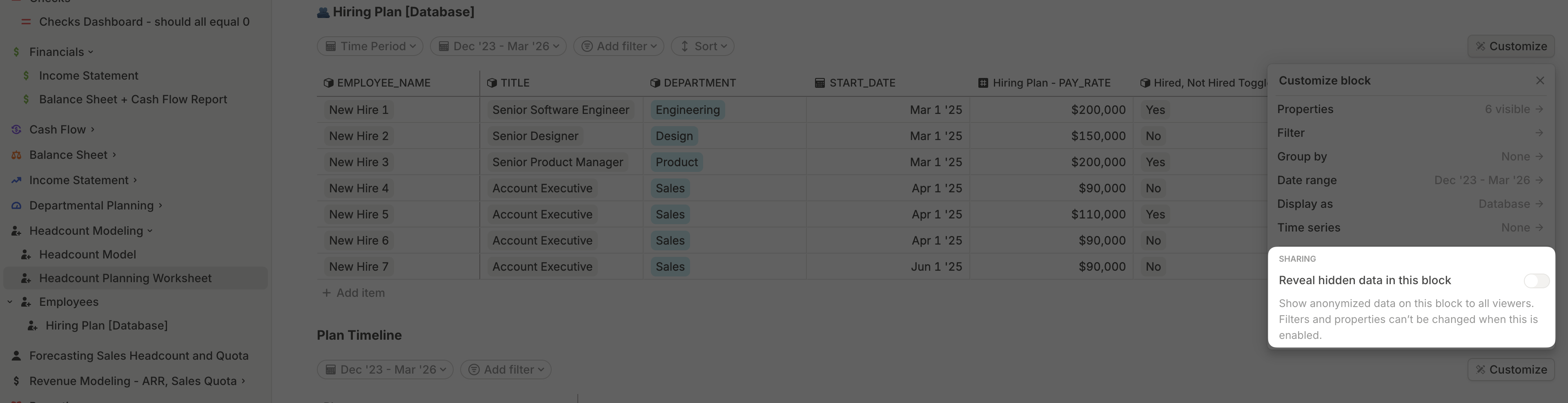
In some cases, though, you may want to grant access to a **subset of anonymized data** — a common example being headcount planning, where department leads should be able to see salary data for their direct reports.
To support this, you can **customize a specific database block on a page** to reveal hidden data. When this option is enabled:
* The anonymized values are shown in that block.
* Filters and properties on the block are locked, preventing further changes that could unintentionally expose sensitive information.