> ## Documentation Index
> Fetch the complete documentation index at: https://runway-docs.cfo.ai/llms.txt
> Use this file to discover all available pages before exploring further.
# Segmenting drivers
> Segment drivers with dimensions so one metric can be modeled by department, region, account, or another business attribute.
Segmenting drivers lets one driver represent many dimension values. Use it when a single metric, such as Revenue or Headcount, should be modeled by Department, Region, Account, Product, or another dimension.
## Why segment drivers?
### Easier and scalable modeling
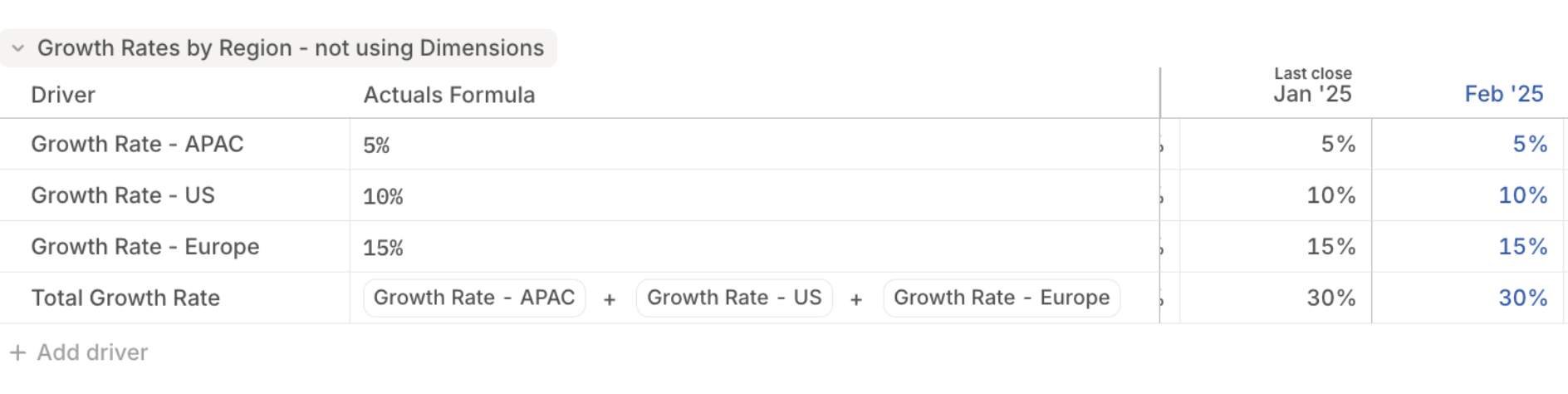
Without dimensions, modeling **Growth Rate by Region** might require separate drivers such as `Growth Rate - US` and `Growth Rate - EMEA`. That naming pattern gets hard to maintain, and totals must reference each driver manually.
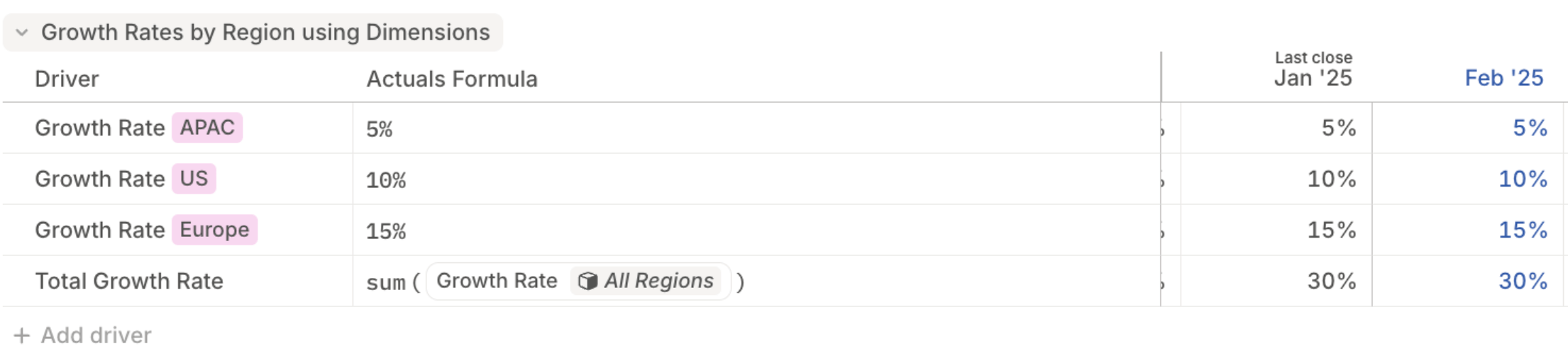
 With dimensions, a single **Growth Rate** driver can be segmented by **Region**. You can write one formula that applies to each region using [This Segment](/concepts/databases/formulas-in-databases#dynamic-formulas-using-this-segment), and rollups stay maintained as dimension values are added.
 ### Roll up and drill into data
Dimensions make it easier to model at different levels of granularity.
For example, a database with **Revenue** segmented by **Region** and **City** has one driver per region-city combination.
### Roll up and drill into data
Dimensions make it easier to model at different levels of granularity.
For example, a database with **Revenue** segmented by **Region** and **City** has one driver per region-city combination.
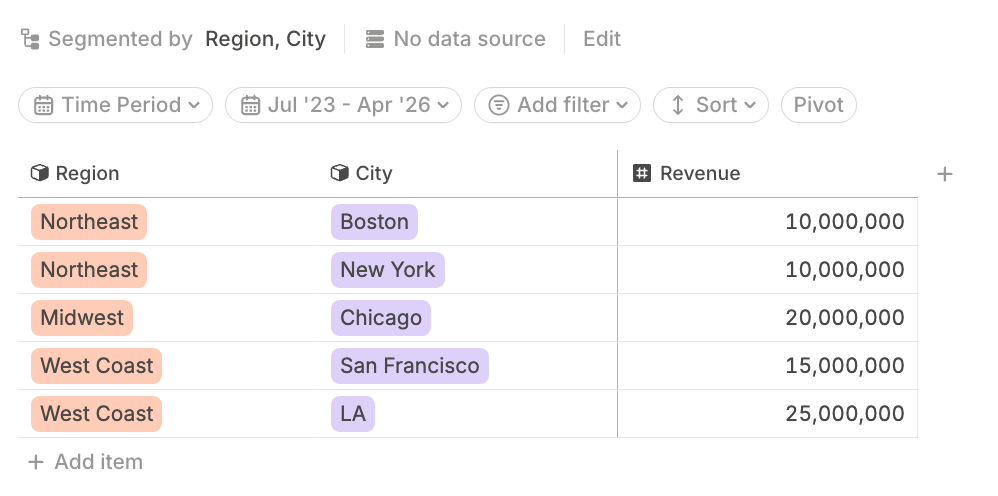 To view Revenue rolled up by Region, create a rolled-up database:
Open the target database where the rolled-up data should live, or [create a database](/concepts/databases/databases-basics#creating-a-database).
Click **Edit** to open [database configuration](/concepts/databases/databases-basics#configuring-a-database).
Add the source database that is segmented by Region and City.
Choose the drivers you want to aggregate, such as Revenue.
Under **Segment by**, select the higher-level dimension, such as Region.
Click **Confirm**.
To view Revenue rolled up by Region, create a rolled-up database:
Open the target database where the rolled-up data should live, or [create a database](/concepts/databases/databases-basics#creating-a-database).
Click **Edit** to open [database configuration](/concepts/databases/databases-basics#configuring-a-database).
Add the source database that is segmented by Region and City.
Choose the drivers you want to aggregate, such as Revenue.
Under **Segment by**, select the higher-level dimension, such as Region.
Click **Confirm**.
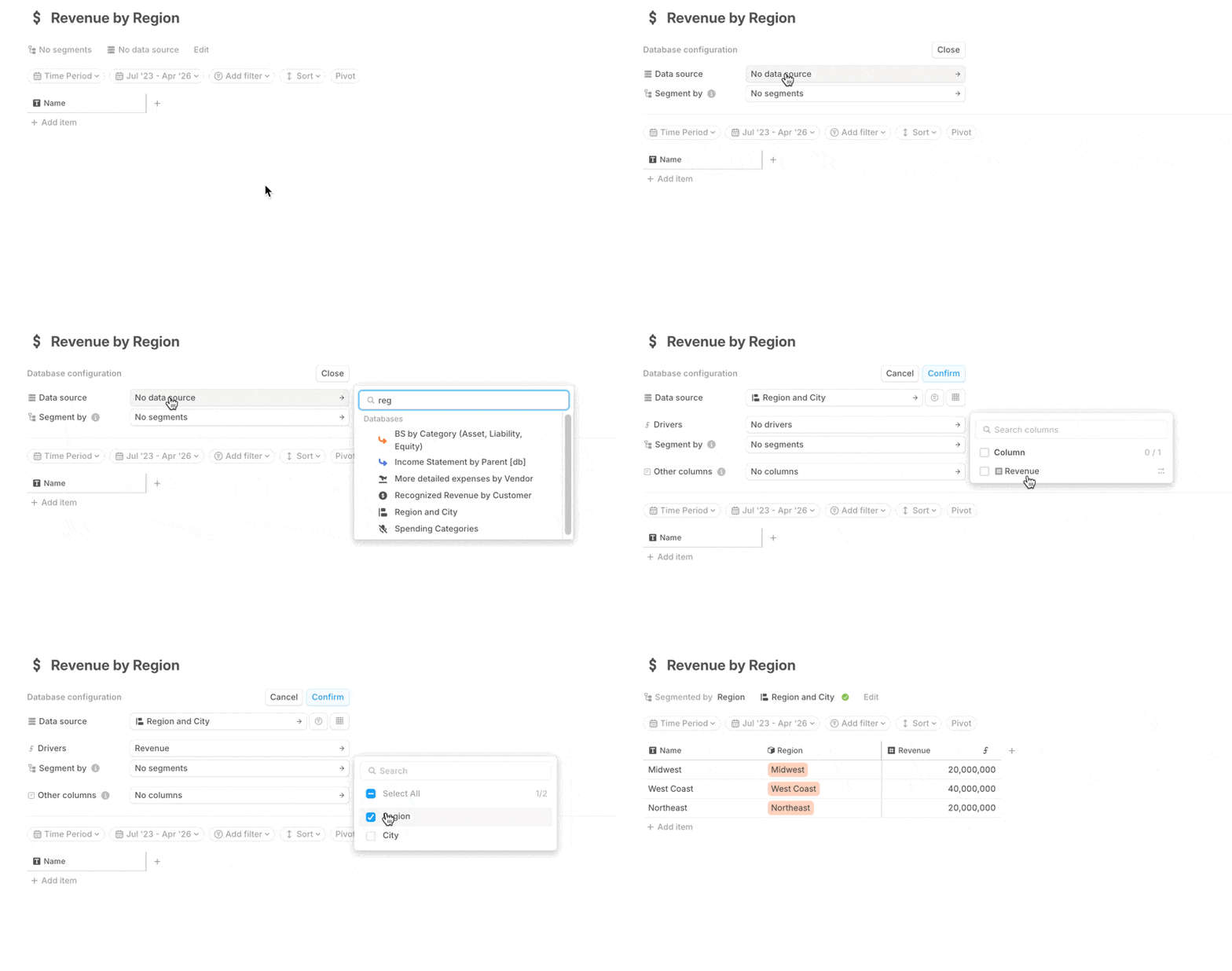 The Revenue driver is now available at both granularities: Region x City and Region.
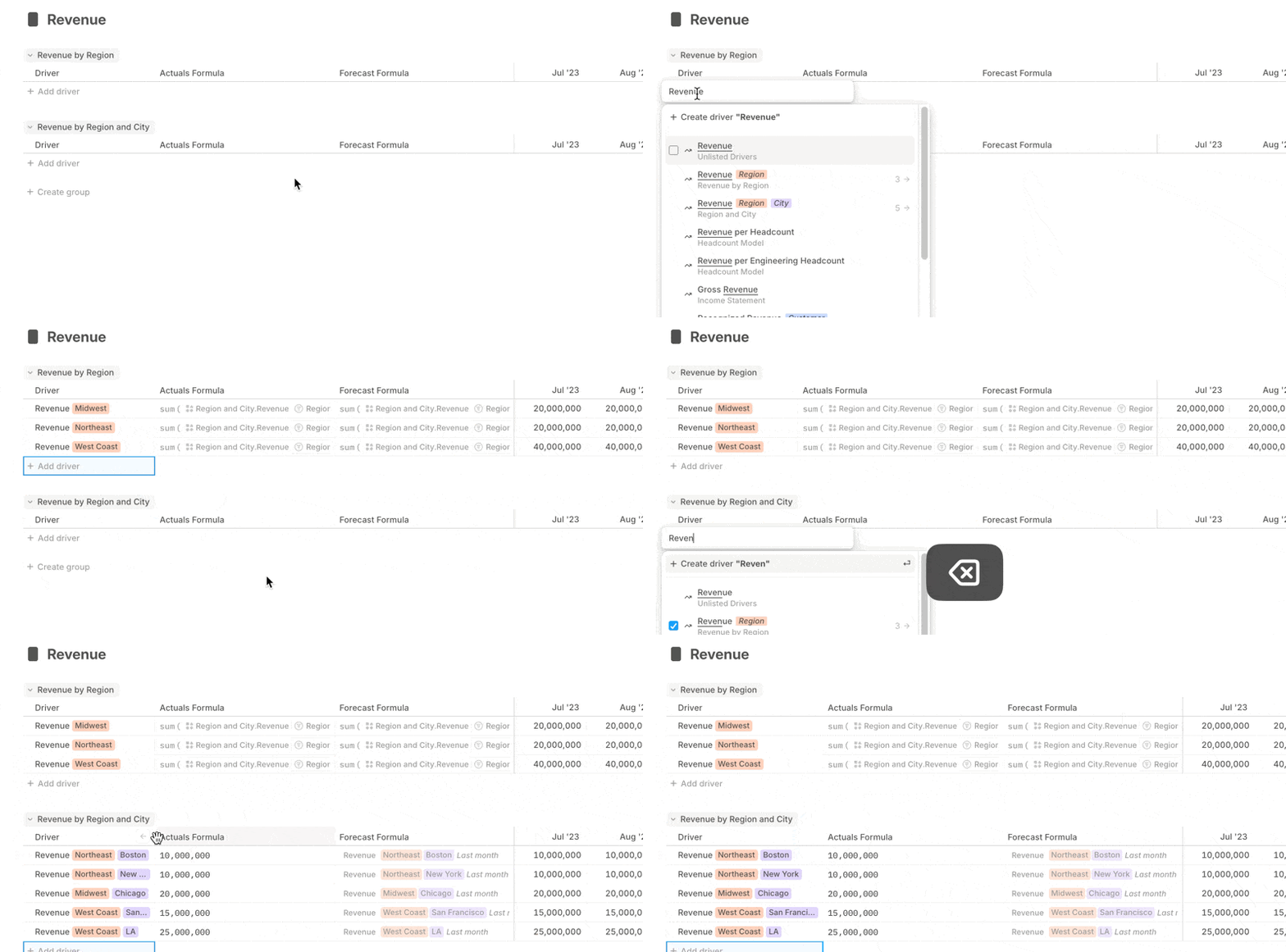 You can [drill in](/concepts/drivers/drill-ins) when you want detail and roll up when you want the big picture.
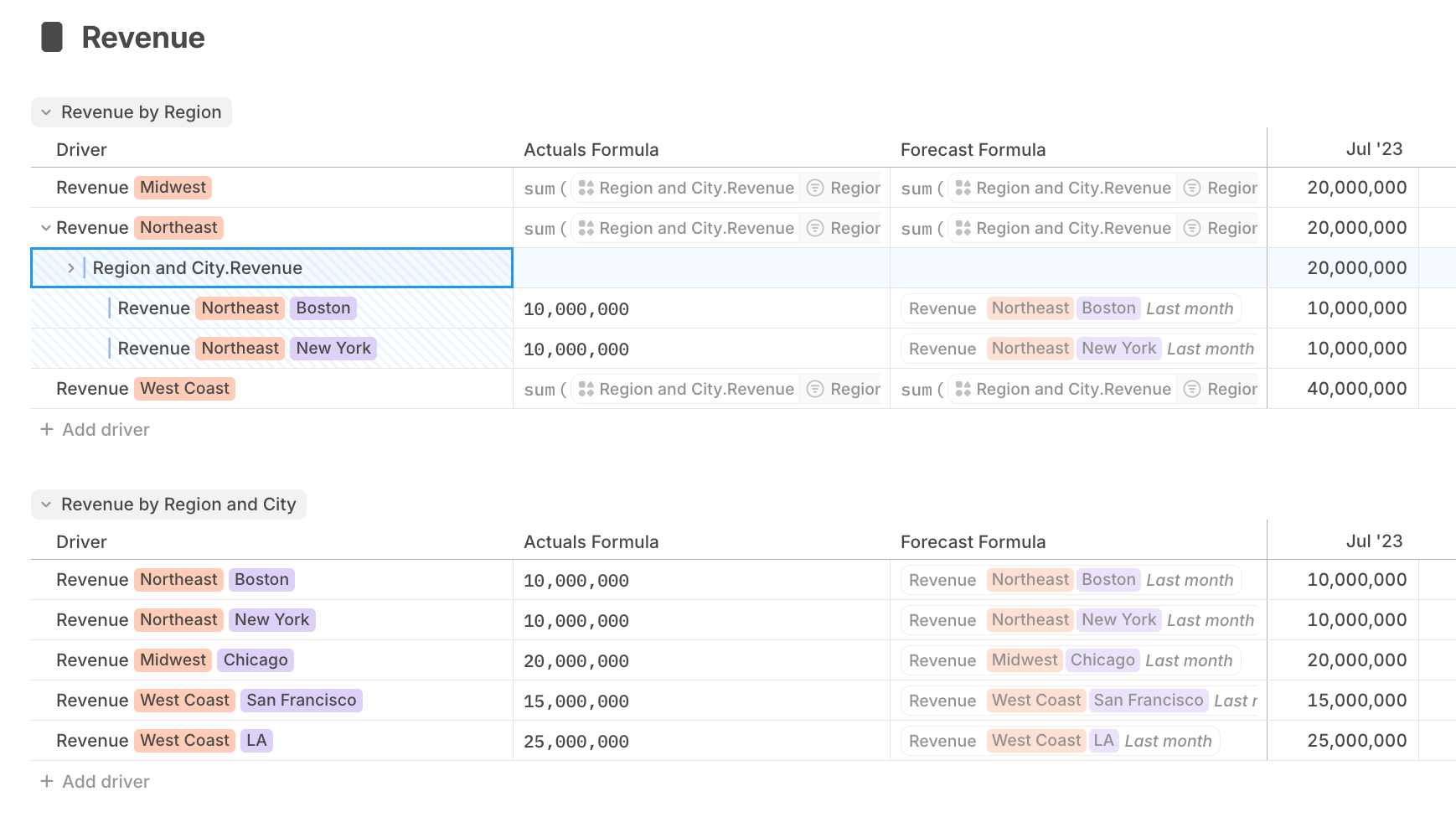 You can create similar hierarchies from other columns, not only the dimensions used in database configuration.
## How to segment drivers
### Segmenting drivers in a database
When [configuring a database](/concepts/databases/databases-basics#configuring-a-database), the **Segment by** field determines how the drivers in that database are broken down.
You can create similar hierarchies from other columns, not only the dimensions used in database configuration.
## How to segment drivers
### Segmenting drivers in a database
When [configuring a database](/concepts/databases/databases-basics#configuring-a-database), the **Segment by** field determines how the drivers in that database are broken down.
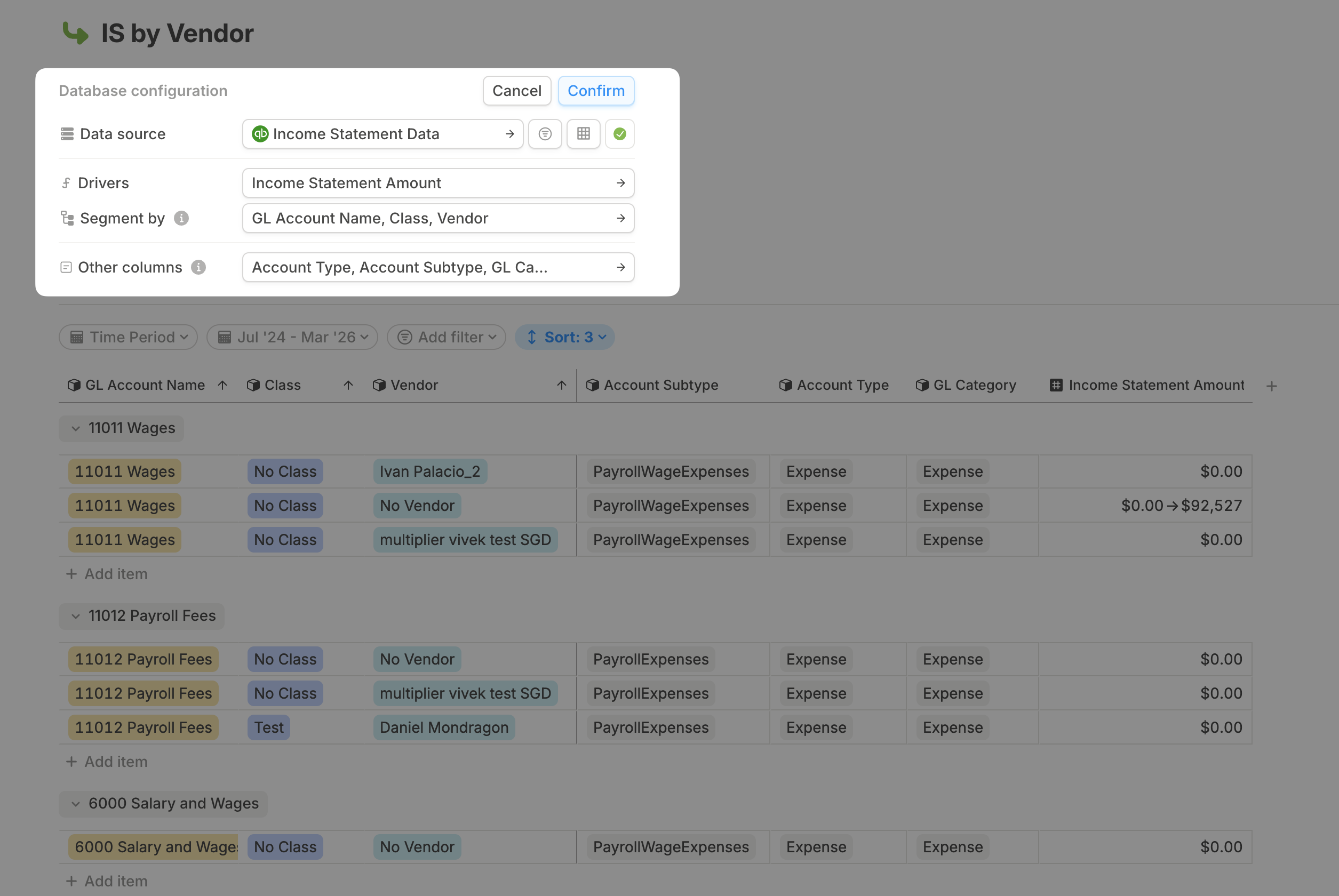 For example, a granular GL database might segment by `Account Name`, `Class`, and `Vendor`. A later rollup database might source from that granular database but segment only by `Class`.
### Segmenting drivers in a model
You can segment an unsegmented driver in a [model](/concepts/models/models-basics):
Click the menu next to the driver name.
Hover over **Dimensions**, then select **Add dimension**.
For example, a granular GL database might segment by `Account Name`, `Class`, and `Vendor`. A later rollup database might source from that granular database but segment only by `Class`.
### Segmenting drivers in a model
You can segment an unsegmented driver in a [model](/concepts/models/models-basics):
Click the menu next to the driver name.
Hover over **Dimensions**, then select **Add dimension**.
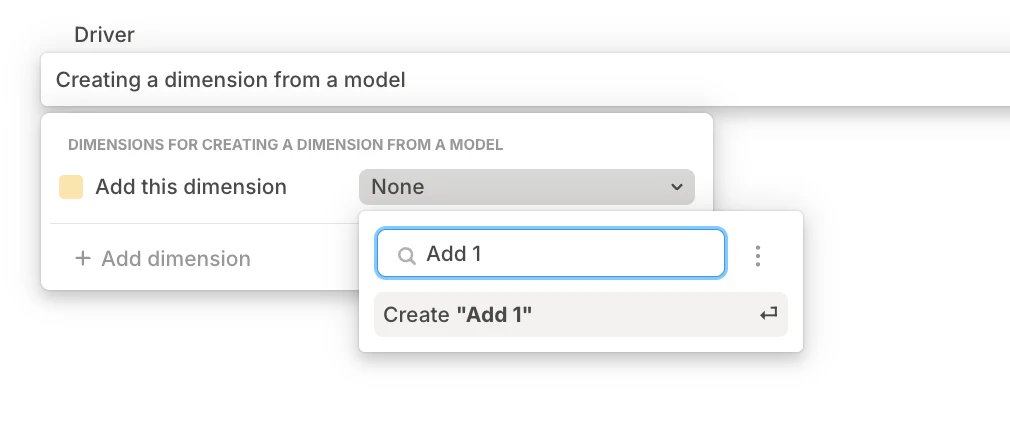
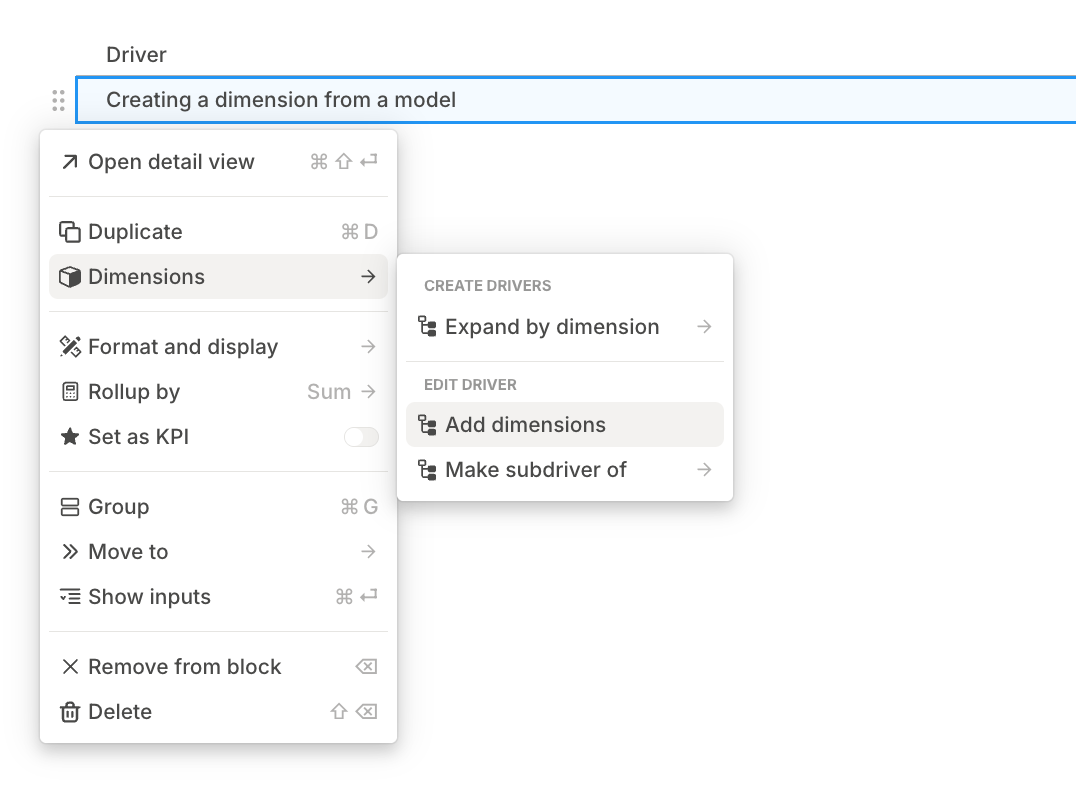 Choose an existing dimension, or type a new name and press Enter to create one.
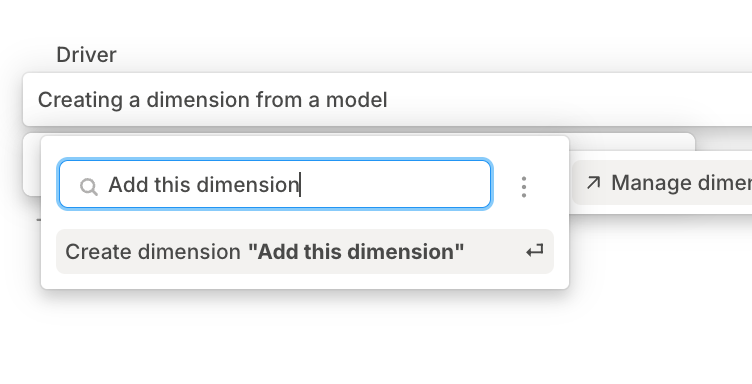 Define the dimension values from the submenu.
 ### Segmenting drivers in a model using Expand by dimension
Use **Expand by dimension** when you need one driver per dimension value from a model. This pattern is most common in legacy headcount models.
When you use **Expand by dimension** directly in a model, new dimension values do not automatically create new drivers. Run the expand flow again when new values are added.
In a model, select the driver you want to expand.
Open the driver menu, hover over **Dimensions**, then select **Expand by dimension**.
Select the dimension to use as the segment. Runway creates one driver segmented by each value in that dimension.
### Segmenting drivers in a model using Expand by dimension
Use **Expand by dimension** when you need one driver per dimension value from a model. This pattern is most common in legacy headcount models.
When you use **Expand by dimension** directly in a model, new dimension values do not automatically create new drivers. Run the expand flow again when new values are added.
In a model, select the driver you want to expand.
Open the driver menu, hover over **Dimensions**, then select **Expand by dimension**.
Select the dimension to use as the segment. Runway creates one driver segmented by each value in that dimension.
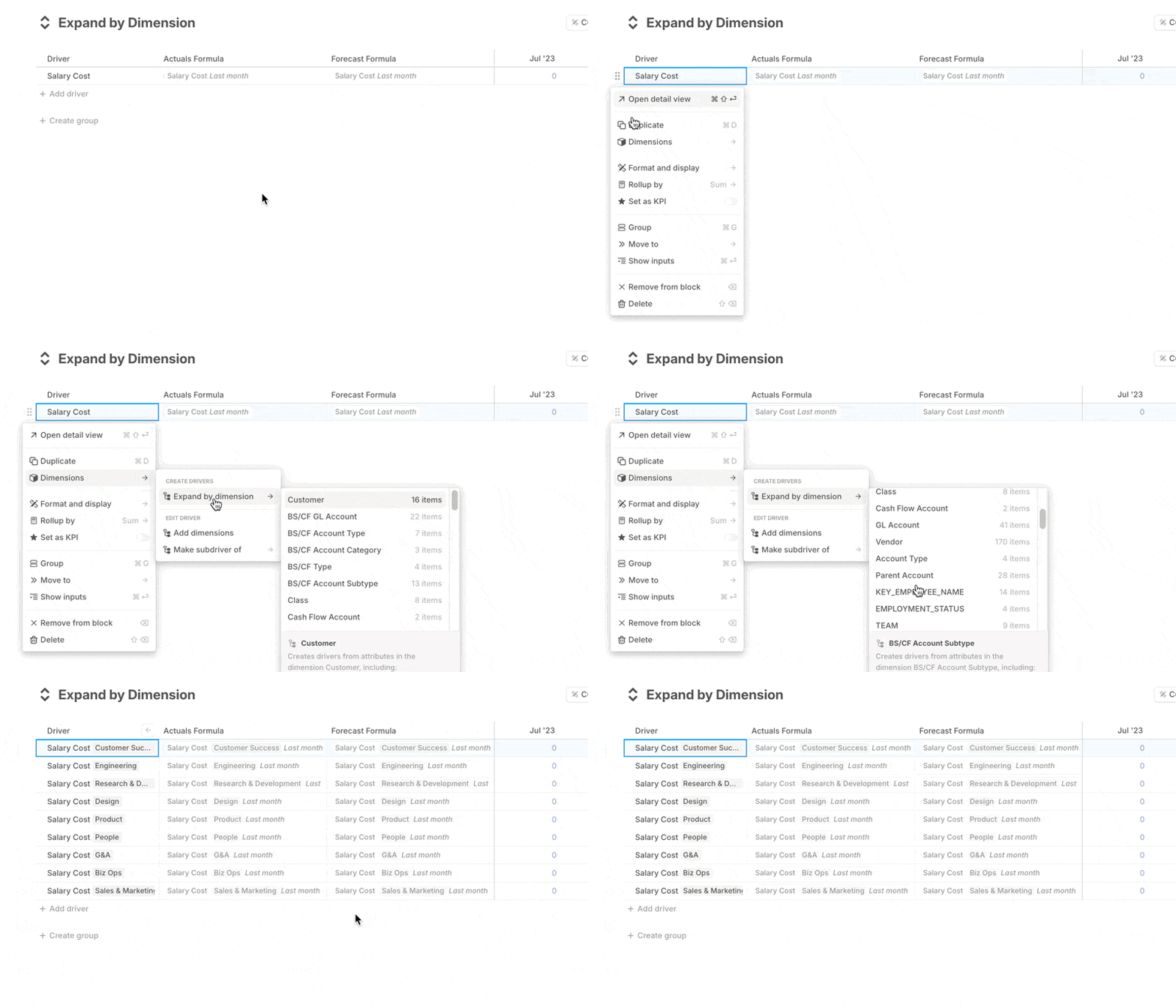 Expand by dimension works best when the source driver already has a formula filtered by the dimension you plan to use.
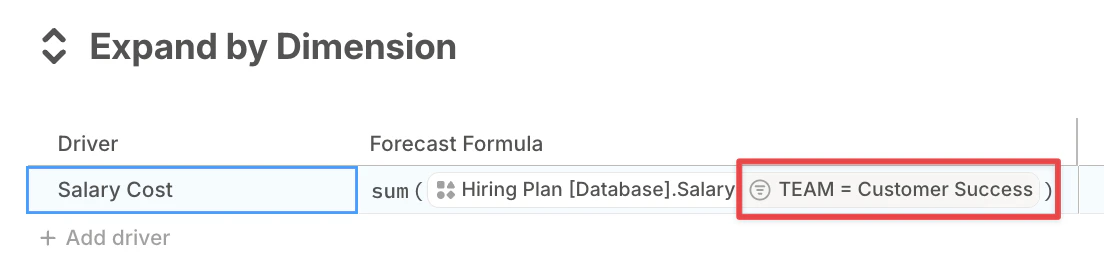 When the formula uses the same dimension as a filter, Runway smart-matches the formula to each dimension value.
## What's next
* [Dimensions basics](/concepts/dimensions/dimensions-basics)
* [Databases basics](/concepts/databases/databases-basics)
* [Headcount planning](/guides/modeling/headcount-planning)
When the formula uses the same dimension as a filter, Runway smart-matches the formula to each dimension value.
## What's next
* [Dimensions basics](/concepts/dimensions/dimensions-basics)
* [Databases basics](/concepts/databases/databases-basics)
* [Headcount planning](/guides/modeling/headcount-planning)