> ## Documentation Index
> Fetch the complete documentation index at: https://runway-docs.cfo.ai/llms.txt
> Use this file to discover all available pages before exploring further.
# Formulas in databases
> This article covers how to manage driver formulas in databases to support scalable, dimensional modeling in Runway.
For guidance on mapping values using dimensions, see [Lookups](/guides/modeling/lookups).
## Default formulas
* Setting default formulas across a column can save a lot of time—both when you have many drivers that should follow the same logic, **and** when new segments are added to the database. Any new segment will automatically inherit the default formula unless it’s explicitly overridden.
* In databases, each driver column can have a default formula, and any individual row (i.e., specific segmented driver) can override it. To revert to the default, just backspace or clear the custom formula.
* Inherited formulas are shown in a lighter style to indicate they’re coming from the default.
## Formula inheritance
To make modeling at scale simple—while keeping it easy to override when needed—Runway applies **smart defaults** to fill in missing formulas.
When editing a formula, you can **hover over the formula editor** to see where the value is being inherited from.
Runway follows a clear set of rules to determine how formulas are inherited and overridden.
### **Actuals formula** inheritance hierarchy
Runway applies the actuals formula using the following order of precedence:
1. An **explicitly set actuals formula** for the driver
2. A **default actuals formula** set at the column level in the database
3. If no actuals formula is available, the driver falls back to its **forecast formula**
### Forecast formula inheritance hierarchy
Similarly, forecast formulas follow this order of precedence:
1. An **explicitly set forecast formula** for the driver
2. A **default forecast formula** set at the column level in the database
3. If none is set, Runway uses the field's value last month, propagated forward. In the editor, this appears as the field's own name with the **Last month** time period.
For example, if only a forecast formula is set at the column level, every driver in that column will automatically inherit that formula—unless an override is applied.
## Dynamic formulas using *This Segment*
In highly dimensional models, when you want to apply similar logic across many segments (like forecasting product usage or modeling revenue per customer), you can use ***This Segment*** to write formulas that scale.
* ***This Segment*** refers to **other data that shares some or all of the same dimensional attributes** as the driver you’re writing the formula for.
* It allows you to write a **single formula** that dynamically adjusts based on the segment it’s applied to—helping you avoid repetitive formulas and reduce the chance of errors.
* While most commonly used within the same database, ***This Segment*** also works **across different databases**.
* You can also use **dimension filters** inside *This Segment* to fine-tune the match—for example, matching on just one shared dimension if that’s all that’s needed.
Let’s walk through some common use cases where *This Segment* helps scale your modeling logic and keep things simple.
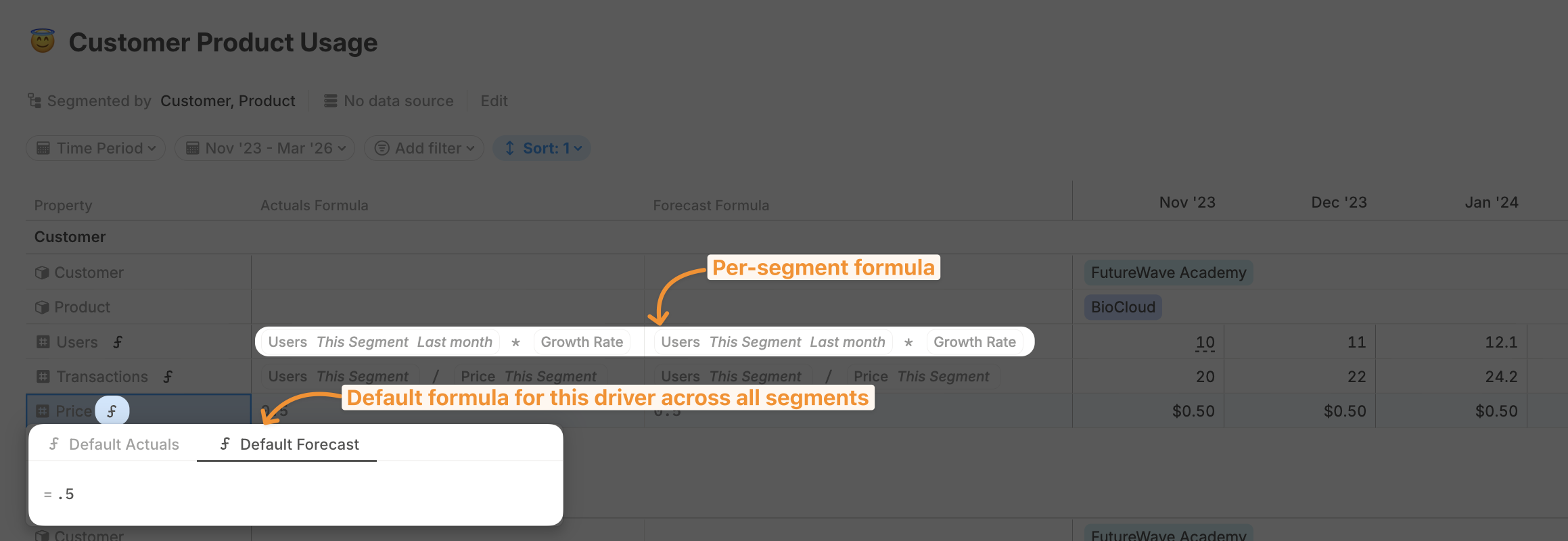
When chaining formulas together in databases, the **Timeseries view** is a great way to see how logic flows across multiple drivers. You’ll be able to view all default formulas side by side, and edit them directly by clicking the **ƒ** icon for each driver to see how changes propagate.
You can switch to this view via: **Customize → View as → Timeseries**.\
\\
 ### Example: Dynamic default formula using *This Segment*
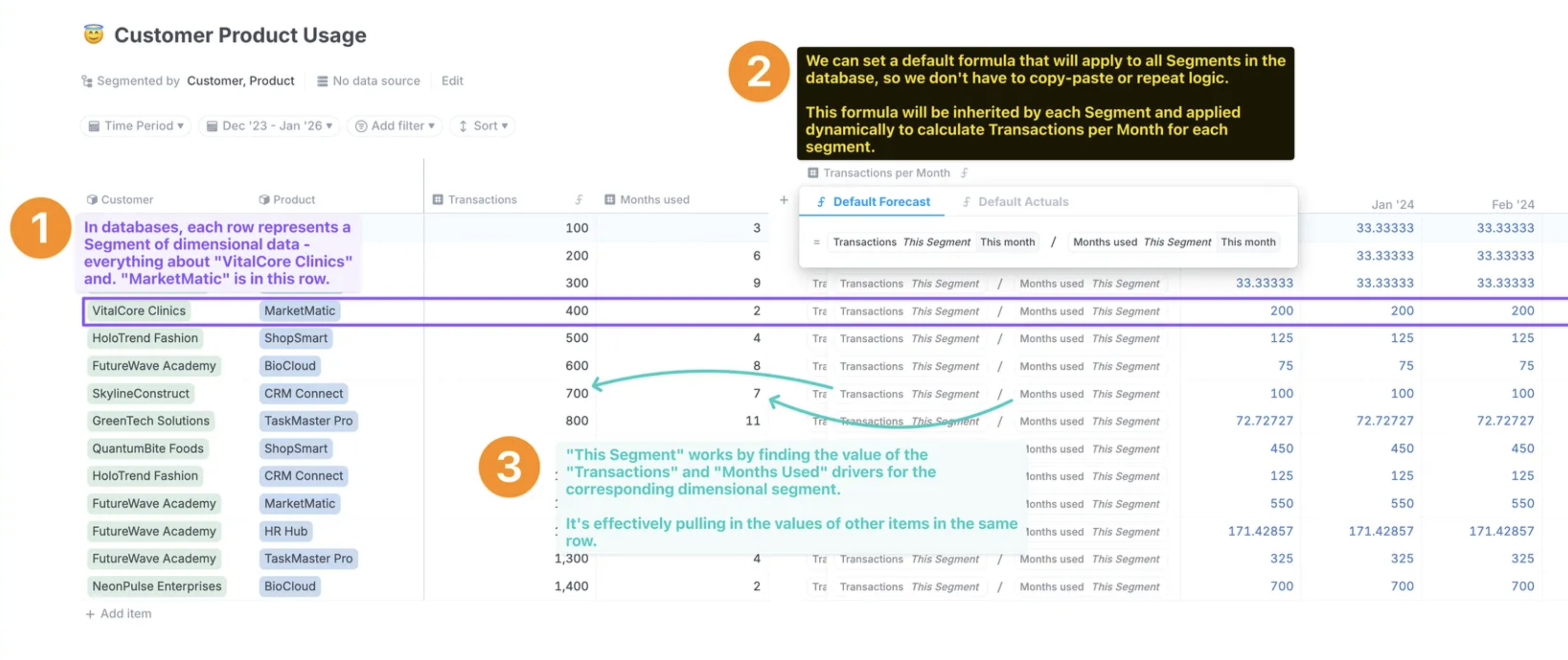
In this example, we use the *This Segment* to populate a default formula that applies consistent logic across all segments in the database. Below is a video and diagram to help illustrate how it works.
### Example: Dynamic default formula using *This Segment*
In this example, we use the *This Segment* to populate a default formula that applies consistent logic across all segments in the database. Below is a video and diagram to help illustrate how it works.
 ### Example: Dynamic filters using dimensions
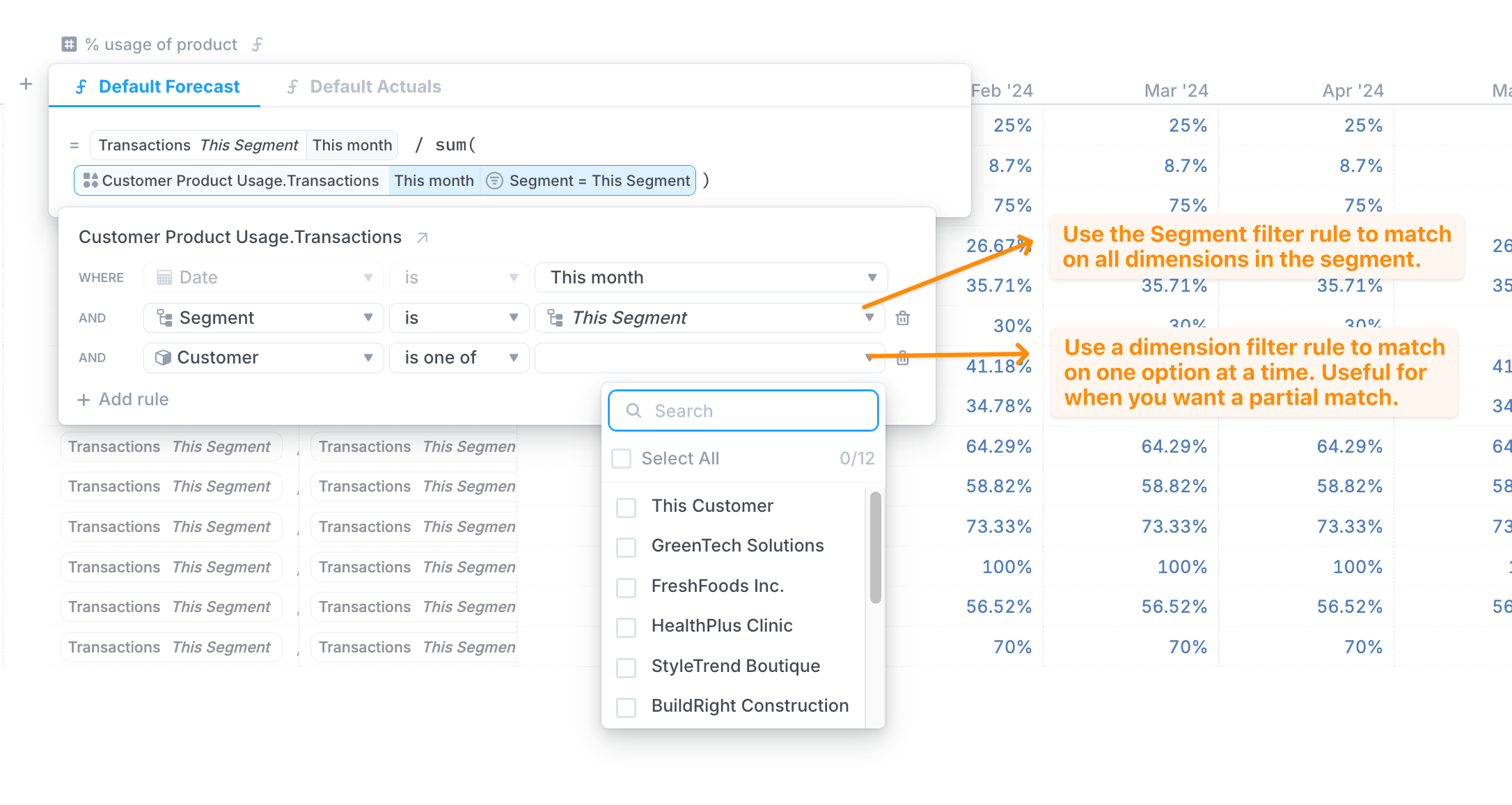
Sometimes, you may want to filter based on partial match with a segment—for example, matching on a single dimension rather than all of them. With *This Segment*, you can apply dynamic filters across **all dimensions** or a **subset of them**, directly from the filter menu.
Let’s walk through an example: you want to calculate what percentage of each product’s usage is consumed by each customer.
In the filter menu:
* If you want to match across **all** the dimensions in the segment (e.g. match on Customer Name + Product), you can use the **Segment** filter.
* To apply the dynamic filters for specific dimensions, you can select the relevant dimension and then use the **This \** option.
When choosing what to filter:
* Selecting a **formula pill with the database name and icon** lets you filter on **any column** in that database.
* Selecting a **formula pill with just the driver name** limits you to filtering on **columns the driver is segmented by.**
### Example: Dynamic filters using dimensions
Sometimes, you may want to filter based on partial match with a segment—for example, matching on a single dimension rather than all of them. With *This Segment*, you can apply dynamic filters across **all dimensions** or a **subset of them**, directly from the filter menu.
Let’s walk through an example: you want to calculate what percentage of each product’s usage is consumed by each customer.
In the filter menu:
* If you want to match across **all** the dimensions in the segment (e.g. match on Customer Name + Product), you can use the **Segment** filter.
* To apply the dynamic filters for specific dimensions, you can select the relevant dimension and then use the **This \** option.
When choosing what to filter:
* Selecting a **formula pill with the database name and icon** lets you filter on **any column** in that database.
* Selecting a **formula pill with just the driver name** limits you to filtering on **columns the driver is segmented by.**
 ### Example: Dynamic filters using driver values
**Numeric drivers** There’s one more powerful use case for *This Segment*—using it to dynamically match on **driver values**, not just dimensions. This allows you to reference a value from one driver based on the value of another, similar to `VLOOKUP()` in Excel—but more robust.
Let’s walk through an example. You want to charge customers different unit prices based on their usage tier thresholds.
Imagine you have a database of **usage tiers** with associated **unit prices**, and you're trying to calculate how much to charge each customer.
### Example: Dynamic filters using driver values
**Numeric drivers** There’s one more powerful use case for *This Segment*—using it to dynamically match on **driver values**, not just dimensions. This allows you to reference a value from one driver based on the value of another, similar to `VLOOKUP()` in Excel—but more robust.
Let’s walk through an example. You want to charge customers different unit prices based on their usage tier thresholds.
Imagine you have a database of **usage tiers** with associated **unit prices**, and you're trying to calculate how much to charge each customer.
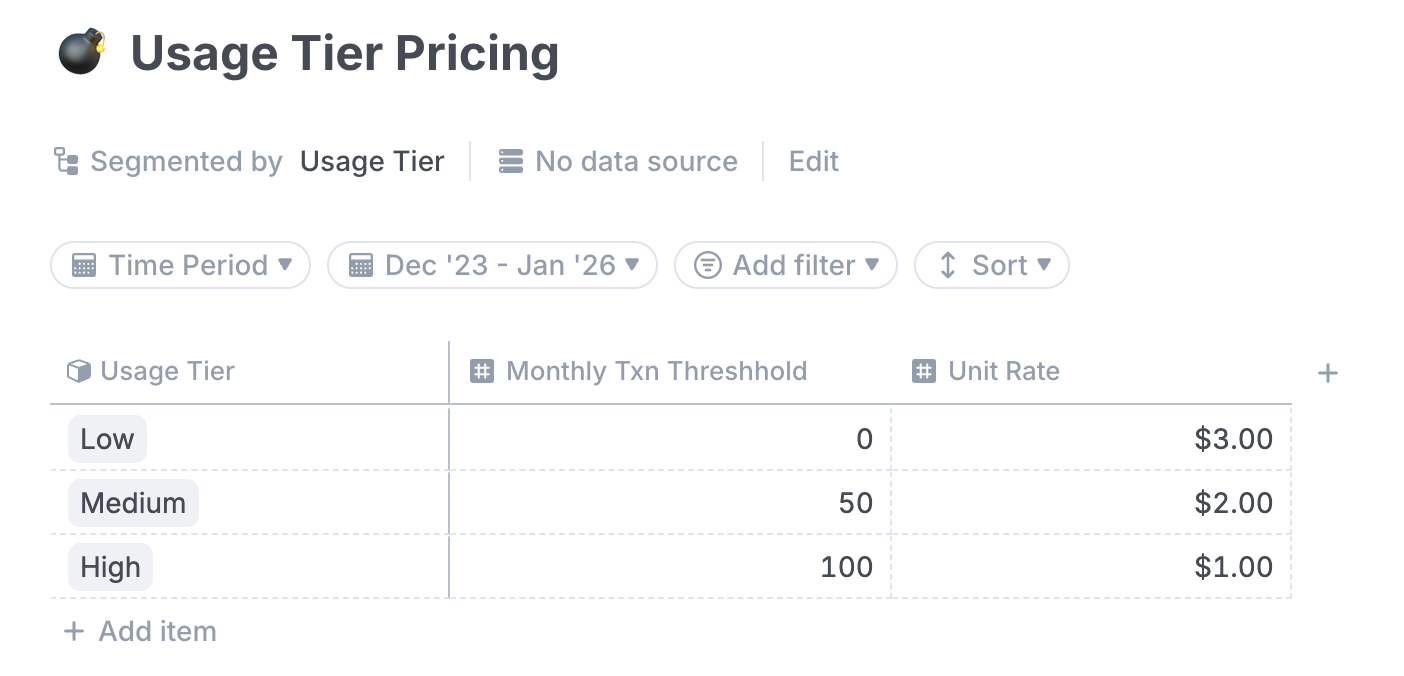 To perform this match, we can simply apply a formula that multiplies: `each customers # transactions` \* `unit price for their usage tier`
You can then use *This Segment* in the filter menu to dynamically select the correct unit price for each customer based on their usage level.
**Date drivers** You can also use *This Segment* to dynamically filter based on **date driver values** — a powerful technique often used in cohort or revenue recognition models.
When filtering a database by a date column, you'll see the option to use **\** as the filter value. This allows you to reference dates from your model—such as contract start dates, signup dates, or feature release dates.
To apply this dynamically for each segment, use *This Segment* when selecting the date driver. That way, each segment uses **its own corresponding date** to filter the data.
To perform this match, we can simply apply a formula that multiplies: `each customers # transactions` \* `unit price for their usage tier`
You can then use *This Segment* in the filter menu to dynamically select the correct unit price for each customer based on their usage level.
**Date drivers** You can also use *This Segment* to dynamically filter based on **date driver values** — a powerful technique often used in cohort or revenue recognition models.
When filtering a database by a date column, you'll see the option to use **\** as the filter value. This allows you to reference dates from your model—such as contract start dates, signup dates, or feature release dates.
To apply this dynamically for each segment, use *This Segment* when selecting the date driver. That way, each segment uses **its own corresponding date** to filter the data.